Your profile gets visits, but you are unsure what to change. Perhaps a campaign brings traffic without enquiries, or visitors miss the link you most want them to use. Add an Analytics tool when it can help answer that specific question.
QRown supports Google Analytics 4 and Microsoft Clarity on the Business plan. These integrations send supported browser activity to the provider you connect. You read its reports in that provider's dashboard.
Start with Statistics, then identify the gap
Statistics is QRown's first-party view of recorded QR scans, profile views and interactions. Metrics are the calculations used to describe those records. Analytics refers to separate integrations such as Google Analytics and Clarity.
If your question is “Are people using the QR on my flyer?”, start with QR scan tracking and Statistics. You do not need a third-party account just to begin evaluating recorded QR activity.
Add another tool when you have a question such as “Which online campaign brings visitors to this profile?” or “Are people reaching the action near the bottom of the page?” Decide what you would change based on the answer.
Choose the tool for the question
- Google Analytics 4: Useful for examining traffic and campaign activity in an existing Google Analytics workflow. Keep campaign naming consistent so your reports remain understandable.
- Microsoft Clarity: Its heatmaps and session recordings can help you inspect how visitors use a page, such as whether they reach an important section. See Microsoft's Clarity overview.
A consultant promoting a workshop might use Google Analytics to review traffic from their outreach. A service business with a long profile might use Clarity to investigate whether the enquiry action is being overlooked. These are example investigations, not promises of a particular result.
Connect a provider in QRown
- Create or select the property or project in your provider account for the profile you want to measure.
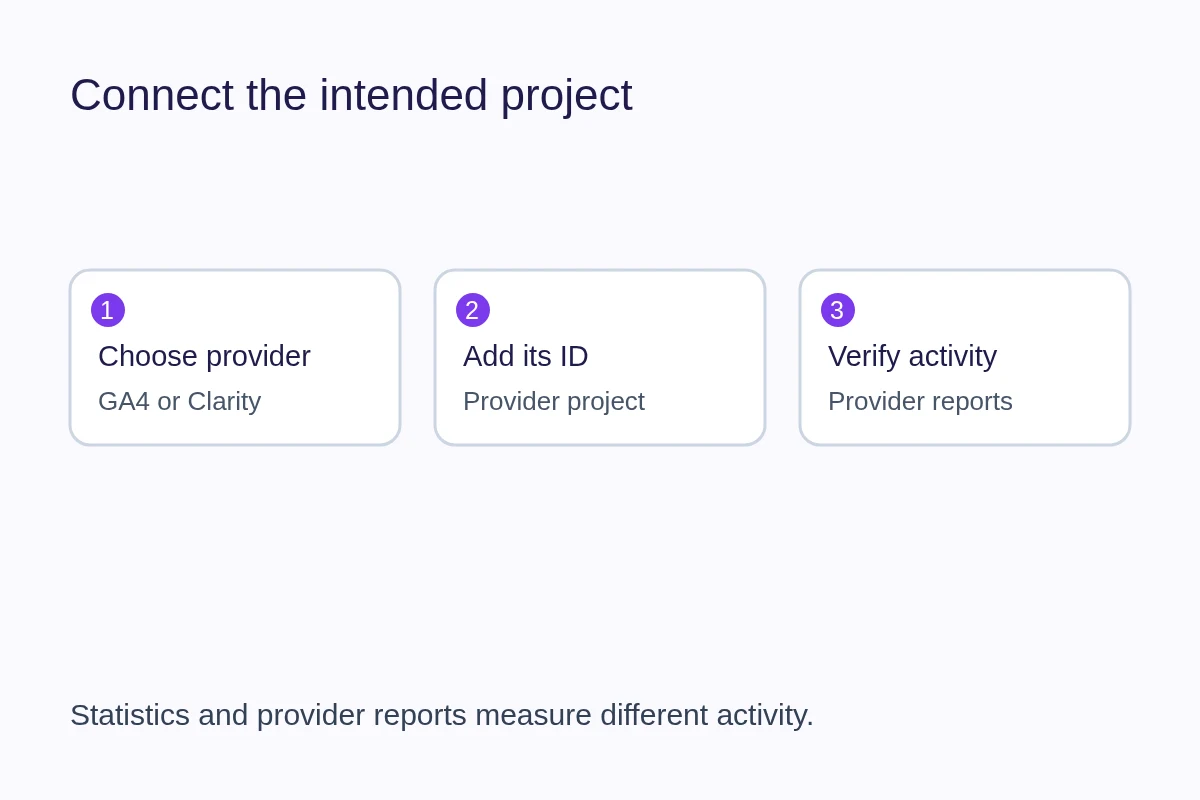
- Open Analytics for your profile in QRown. Choose Google Analytics 4 or Microsoft Clarity.
- Enter the provider's identifier: a Measurement ID for GA4 or a Project ID for Clarity. Use a descriptive name if you manage several connections.
- Choose Add, then check that the service is enabled.
- Visit the public profile and verify that activity reaches the intended provider project, using that provider's verification tools.
For GA4, use the web stream's Measurement ID expected by QRown, beginning with G-. It is not your account password or an API secret. Google's identifier instructions explain where to find it. QRown's provider form also links to the relevant documentation.
If no activity appears, check the ID, enabled state and selected provider project first. Browser blockers and provider processing can affect what appears. Test the public profile, rather than assuming an editor preview is equivalent.
Make one change you can evaluate
Suppose visitors are reaching your service description but the enquiry link is easy to miss. Move that action nearer the description and give it a concrete label, such as “Ask about a renovation.” Note the change date, then review comparable periods with similar traffic.
If campaign visits arrive but enquiries do not, also check whether the campaign promise matches the profile. A page about general services may be an unhelpful destination for a very specific workshop invitation.
Keep your own notes about the changes and the business outcomes. A busier chart is not the same as a better set of enquiries.
Keep measurement boundaries clear
Connecting a provider installs its supported script on the profile. It does not automatically forward every QRown Statistics interaction as a configured conversion in that provider, combine all reports into one dashboard, or verify bookings and purchases on another website.
Statistics and provider reports can differ because they record activity differently. Use each for the question it can answer. Review the provider's privacy and consent guidance for your setup before enabling collection; connecting an ID alone is not a consent configuration.
If the next step is receiving and answering enquiries, explore lead forms and the Leads Inbox.