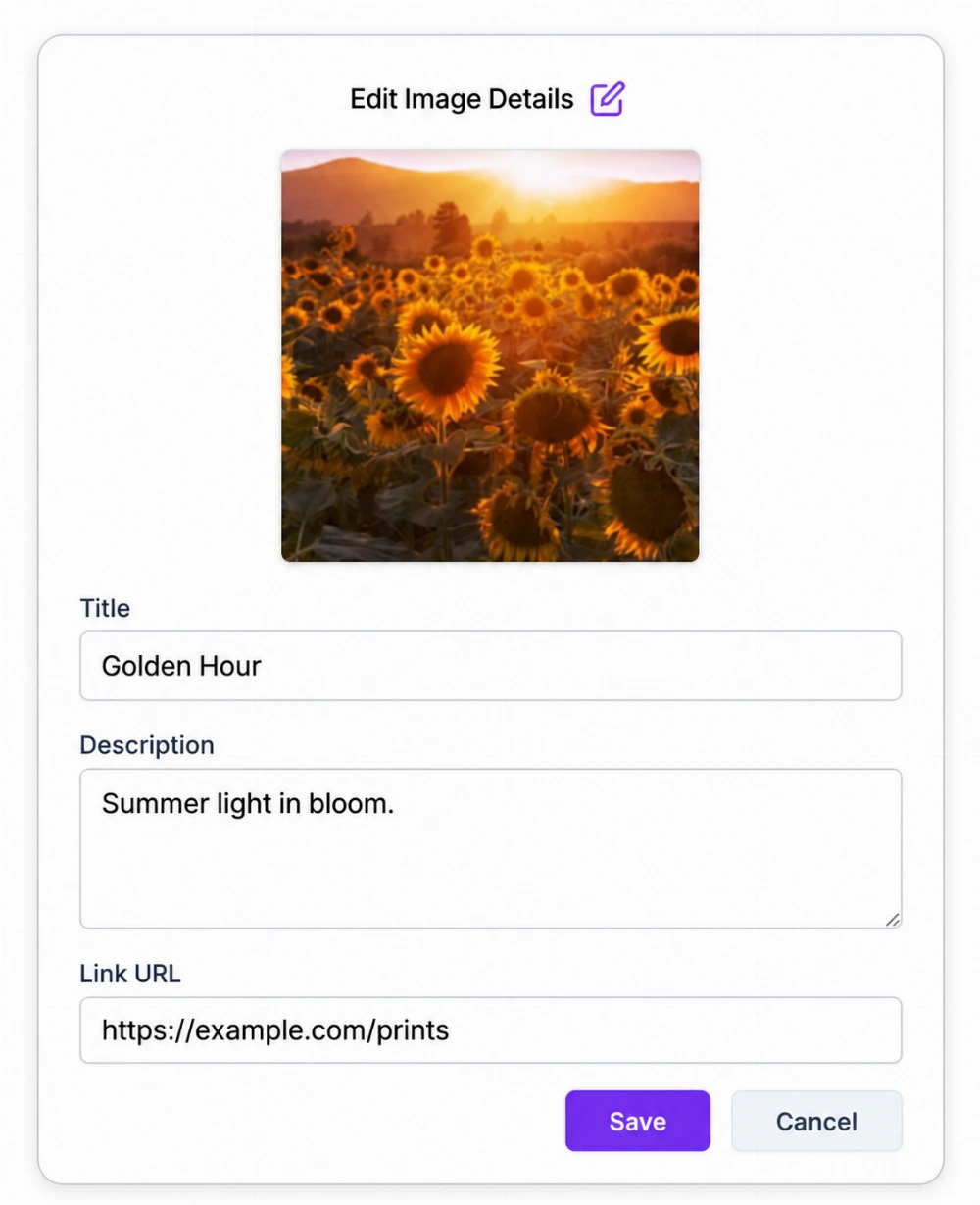
Use Gallery to help visitors understand your work through a small set of useful photos. Give the collection a purpose, choose a strong first image, and add enough context for each photo to make sense.
Choose what the gallery should answer
- “What does your work look like?” Show a few finished projects. Describe the type of work and your role rather than adding a vague caption.
- “What can I buy?” Show a product from different useful angles. Add a title and a description of its size, material, or finish, with a link to the relevant shop page.
- “What should I expect when I visit?” Show the entrance, interior, or workspace. Use captions such as “Courtyard entrance” to explain what the photo helps someone find.
For a fictional ceramic studio, a useful collection might start with a finished mug, followed by its handle detail and a photo showing its size. “Blue stoneware mug, 300 ml” tells a visitor more than “New work.”
Create the gallery and add images
- Choose Gallery from the profile editor's section picker.
- Add an optional title and description. A title such as “Recent kitchen projects” tells visitors what they are looking at.
- Save the new gallery before uploading images.
- Use Add Images to upload your selection. Follow the file and image limits shown in the editor.
- Under Arrange Images, drag images into the order you want. The first image becomes the gallery thumbnail.
- Edit an image to add its optional title, description, and Link URL, then save those details.
Give each image a job
Start with the image that best explains the collection. Follow it with details that answer likely questions. Remove near-duplicates if they do not add useful information.
An image link should lead to the page described by the image and caption. For a product, link to that product's page rather than making people search a whole shop. If the photo only explains a place or a process, it may not need a link.
Use photos you have permission to share. Check for private details in the background before uploading.
Keep the collection current
Use an image's visibility switch to hide it without deleting it. Hidden images and hidden galleries still count toward the allowance shown in the editor. Remove files you no longer need when you need to free space.
Review product links and captions when availability changes. Gallery is a collection of images and optional links; it does not maintain shop inventory or create a checkout.
Check it on a phone
Open the public profile, check the thumbnail, and open the gallery. Make sure the order tells a useful story, captions are readable, hidden images stay out of view, and any links lead to the intended page.
For a wider example of combining a portfolio with product details and contact options, see the craft vendor page guide.
Use the business profile builder to place your gallery beside services and contact options. Explore business profiles for creators to see how a portfolio can lead to a project enquiry.