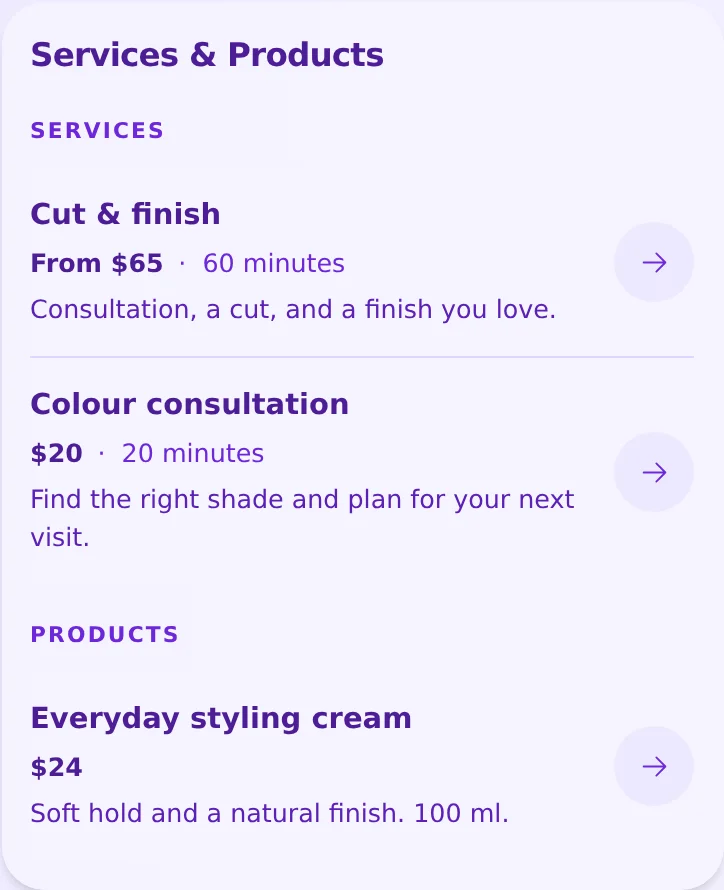
Use What you offer to give each service or product its own name, description, price text, and optional action link. Start with the few items visitors ask about most. Help them understand what they get and what to do next.
Choose a useful example
These fictional examples show how the same fields work for different businesses. Replace the details and prices with your own.
- A service: “Portrait session” — “From $120” — “45 minutes.” Describe the location, what is included, and what changes the price. Use “Check available times” for a link to your scheduler.
- A physical product: “Handmade mug” — “$28 each.” Describe the size, finish, and collection options. Use “View available mugs” for a link to your shop.
- A digital product: “Weekly meal planner” — “$8.” Explain the file format and what the buyer receives. Link “View planner” to the page where they can buy or download it.
A useful description answers one question: “Is this right for me?” Put important conditions next to the item, rather than leaving visitors to guess.
Set up your first item
- In the profile editor, open More sections and choose What you offer.
- Name the section and choose its layout. A title such as “Lessons and workshops” is more useful than a general label when it describes your whole list.
- Choose Service or Product, then enter the item's name. Services can also show a duration.
- Add an optional image, price text, and description. Price text can say “From $120” or “Ask for a quote”; it does not calculate a total.
- If there is a next step, fill in both the action button label and its link. Use a destination that matches the label.
- Check the preview, create the section, and open the public profile to check the item and its link.
Make pricing clear
Use a fixed price when the scope is fixed. Use a starting price when the description explains what can increase the cost. For work that needs a conversation first, say “Custom quote” and explain the information you need.
The service pricing guide has more detailed examples. A displayed price is information for the visitor. It does not turn this section into a checkout, reserve stock, or confirm an appointment.
Build and maintain the list
Add more items from the saved section. Put the most useful ones first, and use Show on my profile to hide an item without deleting it. Section settings and item editing have their own save controls; reordering and visibility changes in the item list save immediately.
Item counts, images, and available layouts depend on your plan. Follow the limits shown in the editor. Keep product availability and external links current yourself.
Check the visitor's next step
On a phone, read each item without opening the editor. Check that the image, price, description, and action tell the same story. Follow each link and confirm that it opens the intended product, booking, or contact page. For a booking destination, follow the booking-service setup guide.
Bring these offers together with your gallery, hours, and contact options in the business profile builder. See how personal trainers present coaching packages and beauty professionals share services and products.