Your beauty business, ready to explore. Help clients choose their next visit.
Bring your service menu, retail products, gallery, and booking links together. Let clients ask about a service and find your payment methods in a profile they can revisit or share.

From a compliment to a conversation
“Who does your hair?”
Give them more than a name.
A client recommends you. Someone discovers your work on social media. Help them see what you offer, find your prices, and take the next step from the same profile.
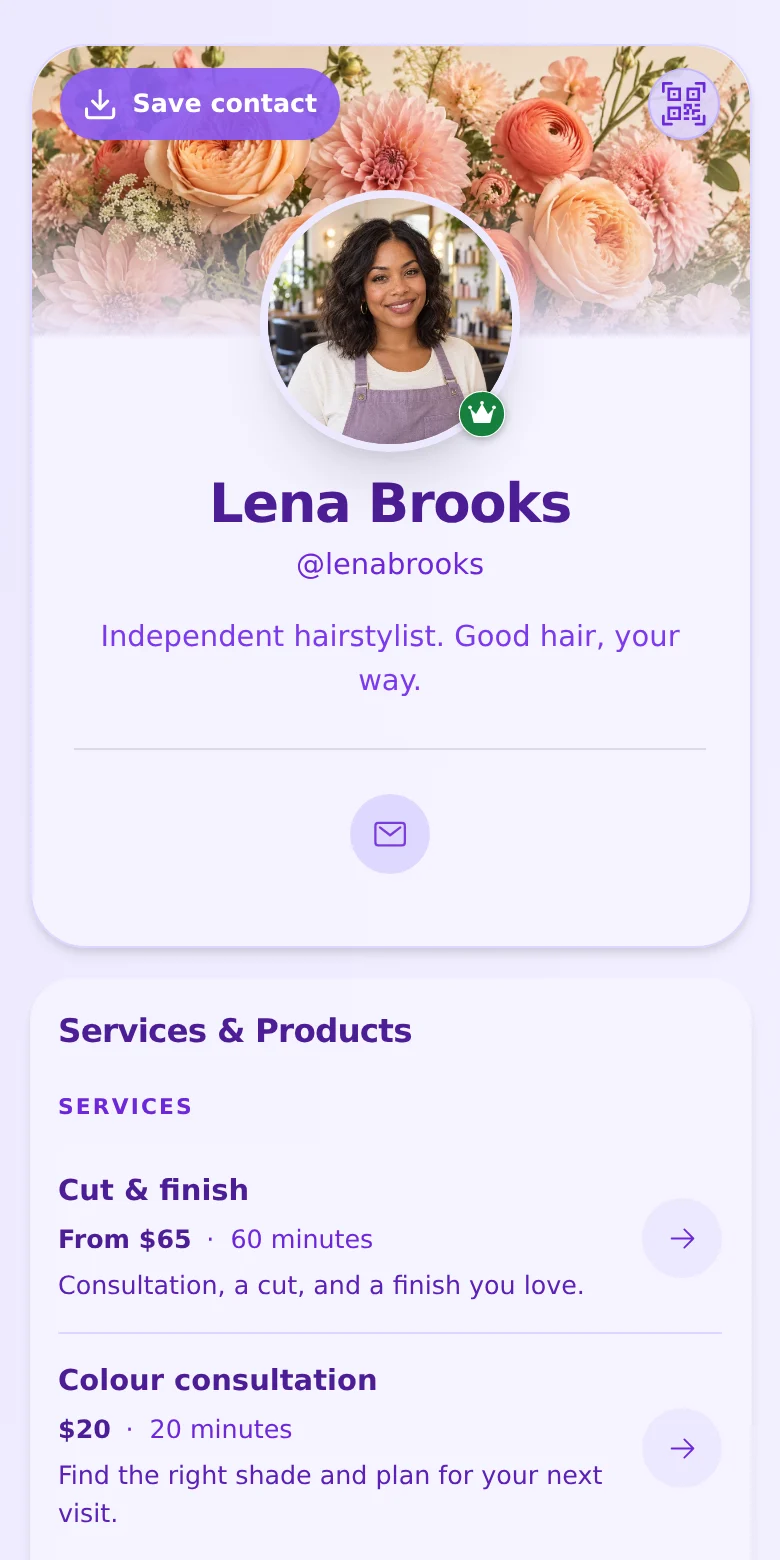

Services & Products
Your service menu.
Your retail shelf.
One place to explore.
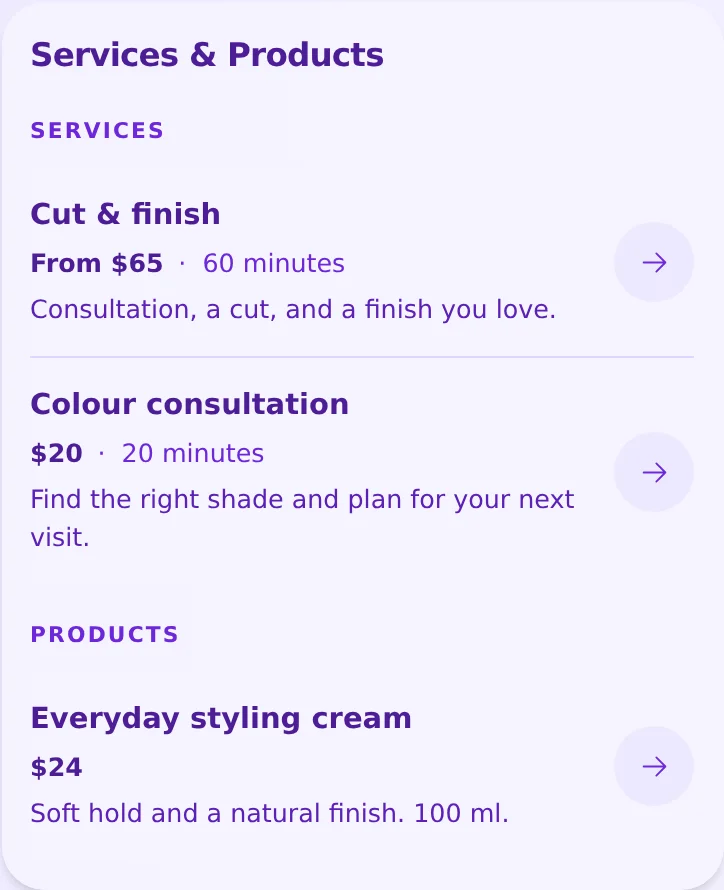
List the services and products you want clients to know about. Add an image, description, and optional price to each item, plus a duration for services.
-
Help clients choose a service.
Explain what a cut, colour consultation, manicure, or makeup session includes. Use price text such as “From $45” where the final cost depends on the work.
-
Keep favourite products easy to find.
Show the haircare or grooming products you sell, with a button linking to the relevant page in your existing online shop.
-
Point each item to its next step.
Add a button to your booking page, shop, or contact page. Bookings and checkout happen on the linked service.
Services & Products in practice
Put the menu beside the work that inspires a visit.
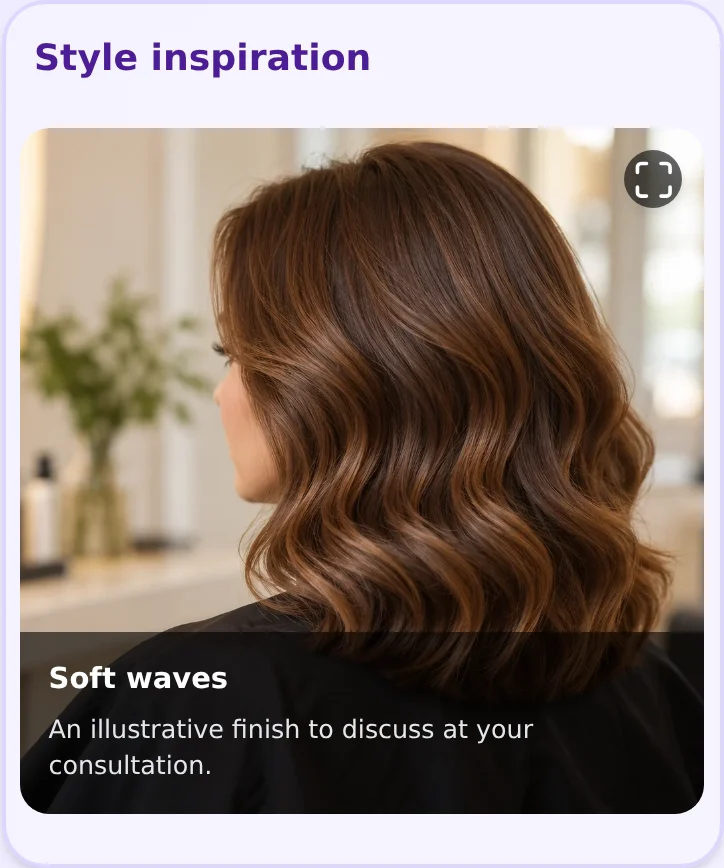
Lena’s sample pairs a cut and finish, colour consultation, and styling cream with a gallery image. A client can explore a look, compare the example prices and durations, then open the relevant booking or shop page.
Stay close to the next appointment
Ready for referrals.
Easy to share again.
At your chair or counter
Put your profile QR code on your own cards or counter display so clients can find your services and product links later.
In your social bio
Connect your latest work with your menu, contact details, and booking destination from one profile link.
When a client recommends you
Give them a link they can send to a friend, with your introduction and next steps already together.
Update your profile when your menu changes. An active profile QR code continues to open the profile. Keep it accessible and test your final QR artwork before printing.
Explore QR sharing and contact cards →Let your work introduce you.
Add a gallery of finished looks you have permission to share. Include your contact details and, if clients visit you, your location and opening hours.
Starter and above include lead forms for enquiries. Review submissions in Leads Inbox and follow up through your usual process. Appointment availability stays with your booking provider.
Explore forms and Leads Inbox →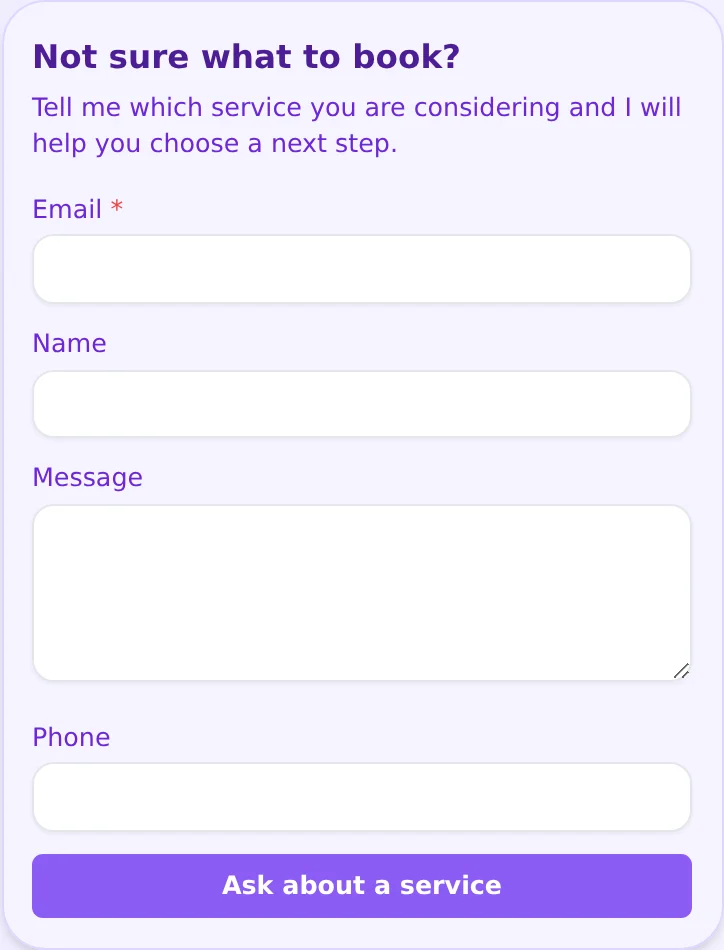
Payment methods · Starter and above
Keep your payment methods within reach.
After a visit, clients can return to the same profile to find your payment details. Lena’s example shows a Zelle method with a short note; choose the supported providers you actually use.
Depending on the provider, visitors can open a payment destination or copy your payment details. QRown does not process the payment or confirm that you have been paid.
Explore payment methods and tips →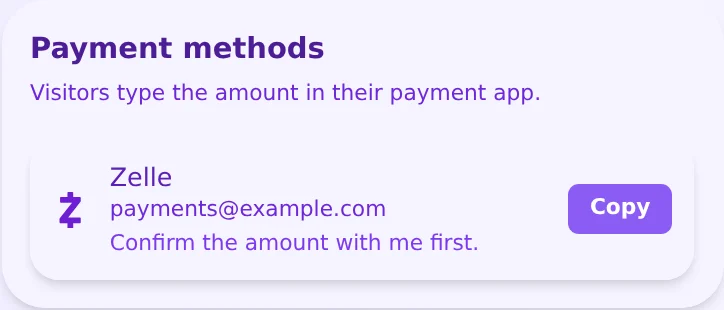
Room to start. Room to grow.
Start with Free.
Add more when you need it.
Free includes 1 link, phone and email contact blocks, a profile QR code, and a gallery with up to 5 images. Services & Products includes up to 3 items on Free.
Starter, Plus, and Business add more service and product items, more gallery capacity, advanced profile design, lead forms with message and phone fields, and lead exports. Profile allowances, Statistics history, and team access vary by plan.
Compare current plans and limits →Questions from beauty professionals
Can clients book appointments in QRown?
Add an action button to a service that opens your existing booking page. QRown does not manage appointment slots, staff schedules, cancellations, or reminders.
Can I show prices and appointment lengths?
Yes. Services & Products supports optional price text and service durations, alongside descriptions and images. Keep these details current; they do not sync with your booking provider.
Can I sell my retail products?
Show products with images, descriptions, prices, and links to your existing shop. QRown does not provide a shopping cart, inventory management, or order fulfilment for these items.
Can I show my recent work?
Yes. Add a gallery of work you have permission to publish. Free includes a gallery; paid plans add more image and gallery capacity.
Does someone need an app to view my menu?
No. An accessible profile opens in a browser. Visitors can explore your services, follow your links, and save your contact card without a QRown account.
Can I tell whether people scan my card?
Statistics shows QR scans and profile views, with further action reporting on paid plans. Engagement does not confirm a completed appointment or product sale.
Explore StatisticsQuestions about your account, profiles, or billing? Visit the general FAQ.
Get your profile ready to share.
-
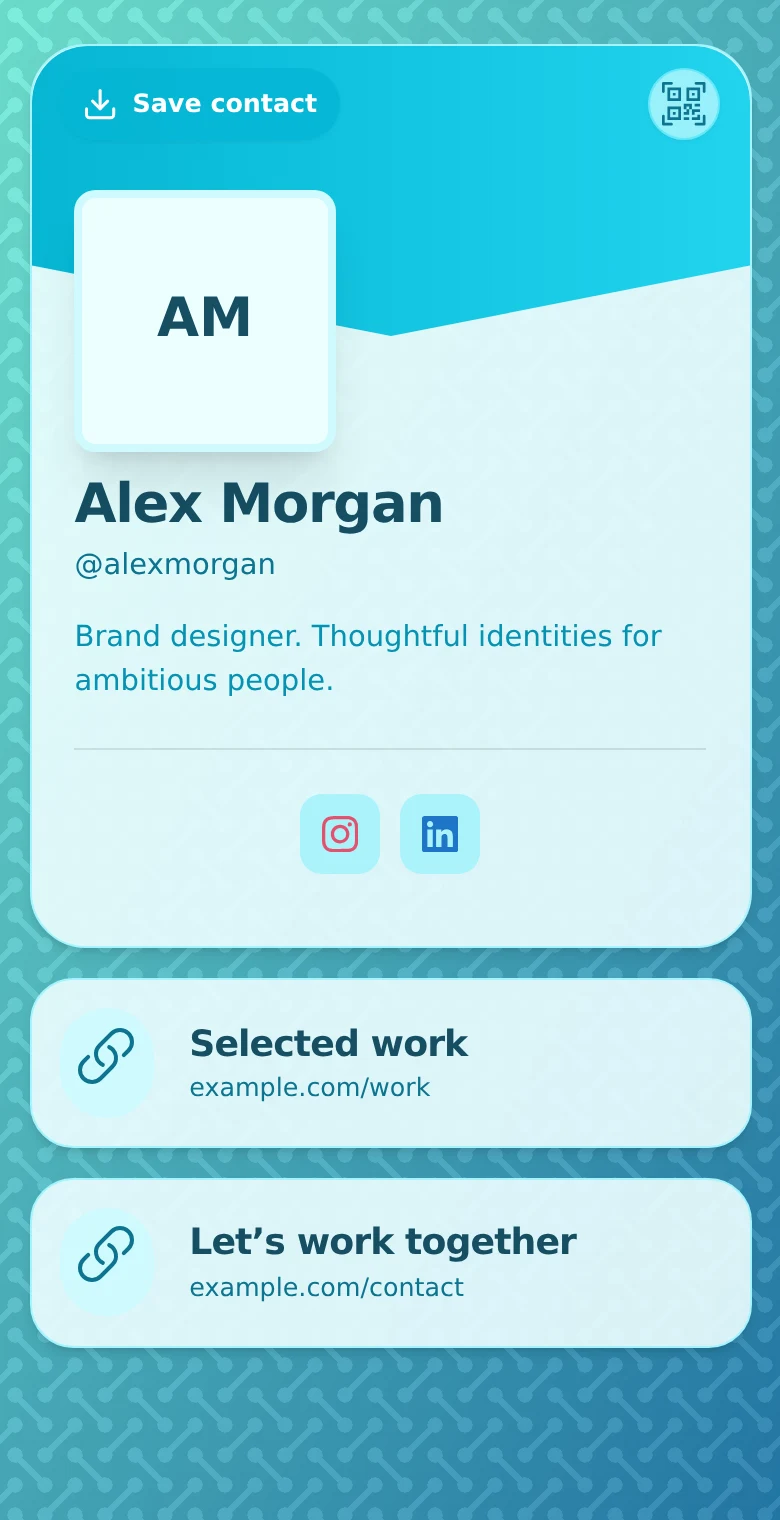
How to Create Your First Profile on QRown
Build a focused QRown profile with contact details, useful links and a clear next step. Check the preview, test sharing, and prepare your first QR code.
-
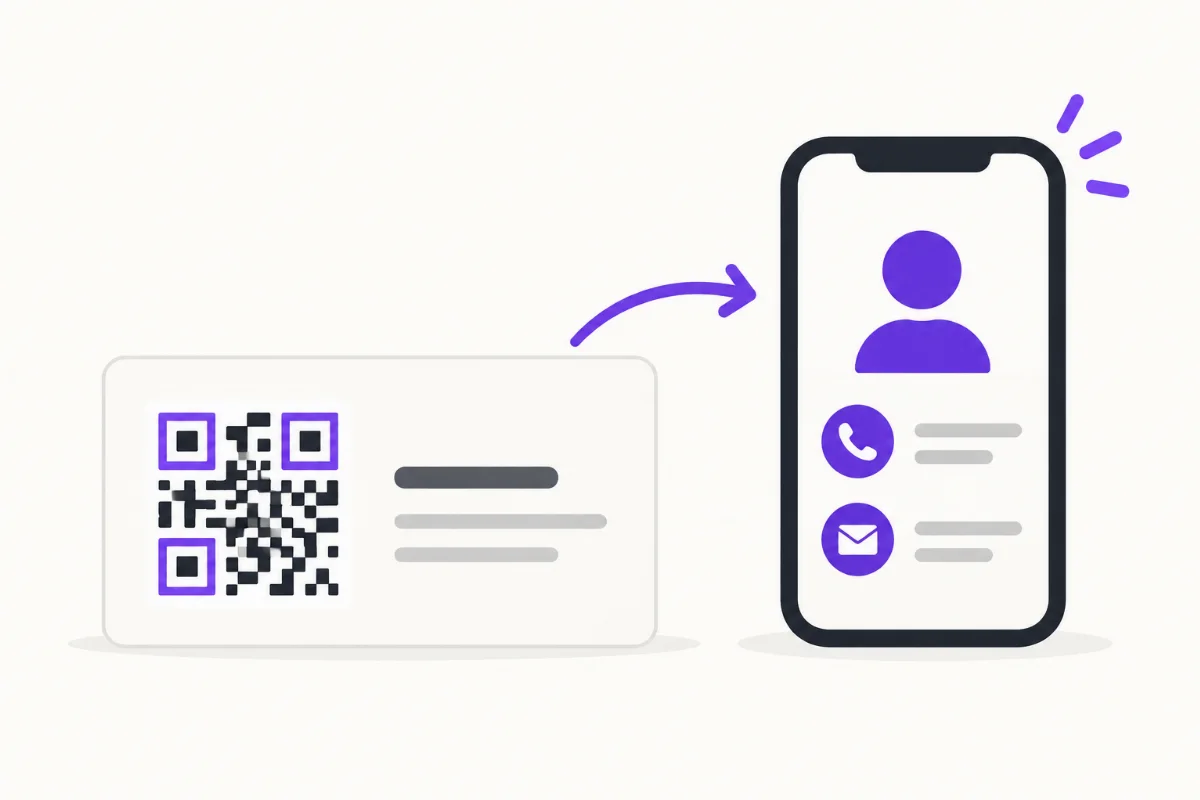
How to Put a QR Code on a Business Card
Choose a destination, place and test your business-card QR, then track card scans separately from other sources without confusing activity with new leads.
-
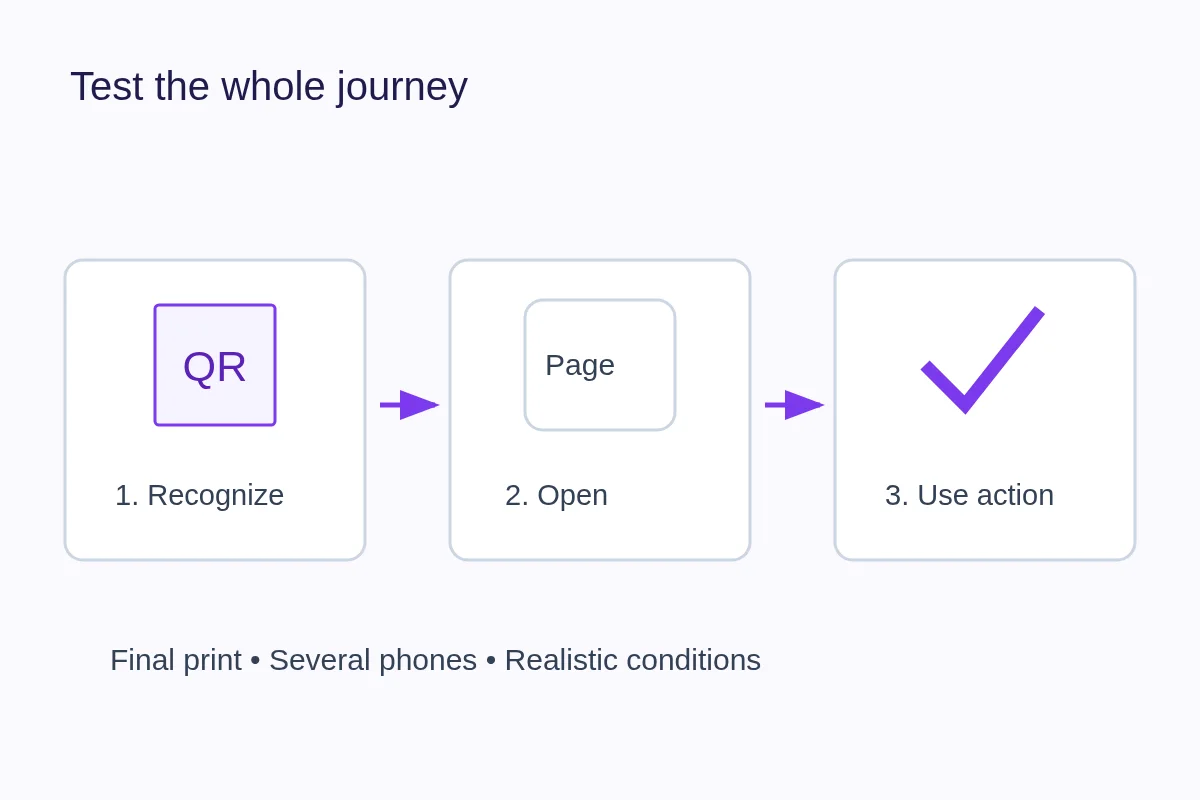
How to Test a QR Code Before Printing
Check recognition, destination and the promised action on a physical proof. Use a repeatable log to separate print problems from broken links.
Make the next referral easy to follow.
Bring your services, products, work, and booking links together in a profile clients can keep and share. Start free.