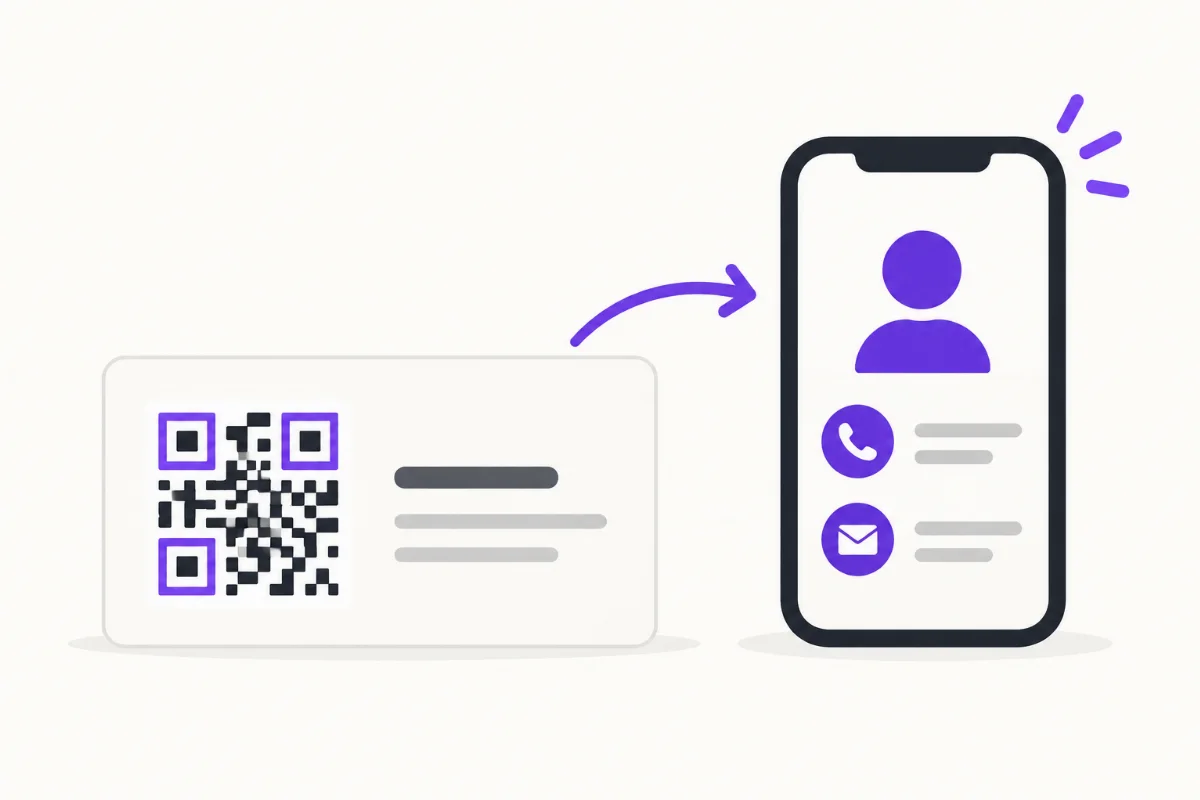
A useful digital business card needs a recognizable name, a short explanation of your work, a contact method you monitor and a clear next step. Add supporting information when it helps the recipient decide what to do.
Make the first screen answer the immediate questions
After meeting you, someone should be able to confirm they have the right person. Use the name and business identity you use in conversation. A relevant photo or business image can help recognition. A job title alone may be too broad: “Residential electrician in the north county” explains more than “Founder.”
Choose a primary action that fits the introduction. At a networking event, saving a contact may be appropriate. After a project discussion, email or an enquiry form may be more useful. A booking link makes sense when the visitor is ready to choose a time.
Choose the details by the job they do
- Name and work: Identify yourself and the business or role the visitor knows.
- A brief description: Say what you offer and who it is for in ordinary language.
- Contact: Include a work email or phone that receives a reliable response.
- Evidence: Link to a relevant project, service explanation or portfolio.
- Context: Include hours, a customer-facing location or service area when the visitor needs them.
- Save contact: Offer a downloadable contact file if keeping your details is part of the handoff.
These are choices, not a requirement to fill every available field. Avoid publishing a home address or personal number just because a form has a space for it. Read the vCard guide and inspect the downloaded file as well as the visible page.
Two practical examples
A freelance illustrator might use their professional name, “Editorial illustration for magazines,” a link to selected work and “Discuss a commission.” Adding every social account above those items would make the main task harder.
A mobile repair business might use its business name, the repairs it handles, an accurate service area and a work phone. If it cannot respond outside business hours, the page should not imply immediate help. A storefront could add opening hours and directions instead.
Write labels that explain the destination
“See kitchen renovations” tells someone what they will find. “Click here” does not. If a link opens an external booking service, say what the service is for. Keep descriptions short enough to scan, but long enough to distinguish your work from a generic list of services.
Use readable text and sufficient contrast. Check the page on a small phone, including long names and labels. Someone should not need to enlarge the page to find the main contact method.
Leave out information that creates work
An old promotion, broken portfolio link or unexplained list of credentials can distract from the next step. Remove details that no longer apply. A digital card can summarize your work and link to a full website rather than copying the entire site.
A saved contact is a snapshot; changing the online page does not update someone else's address book. Keep the profile address in the contact file so there is a route back to current information.
Check it with someone who has not seen the editor
Ask a colleague to open the page signed out and explain what you do, then find the contact action. Watch where they hesitate. Test links and import the contact file on a phone before sharing widely.
QRown profiles use content and contact blocks; available types and limits vary by plan. The first-profile guide covers setup. If you are choosing how to hand it over, compare digital and traditional business cards.