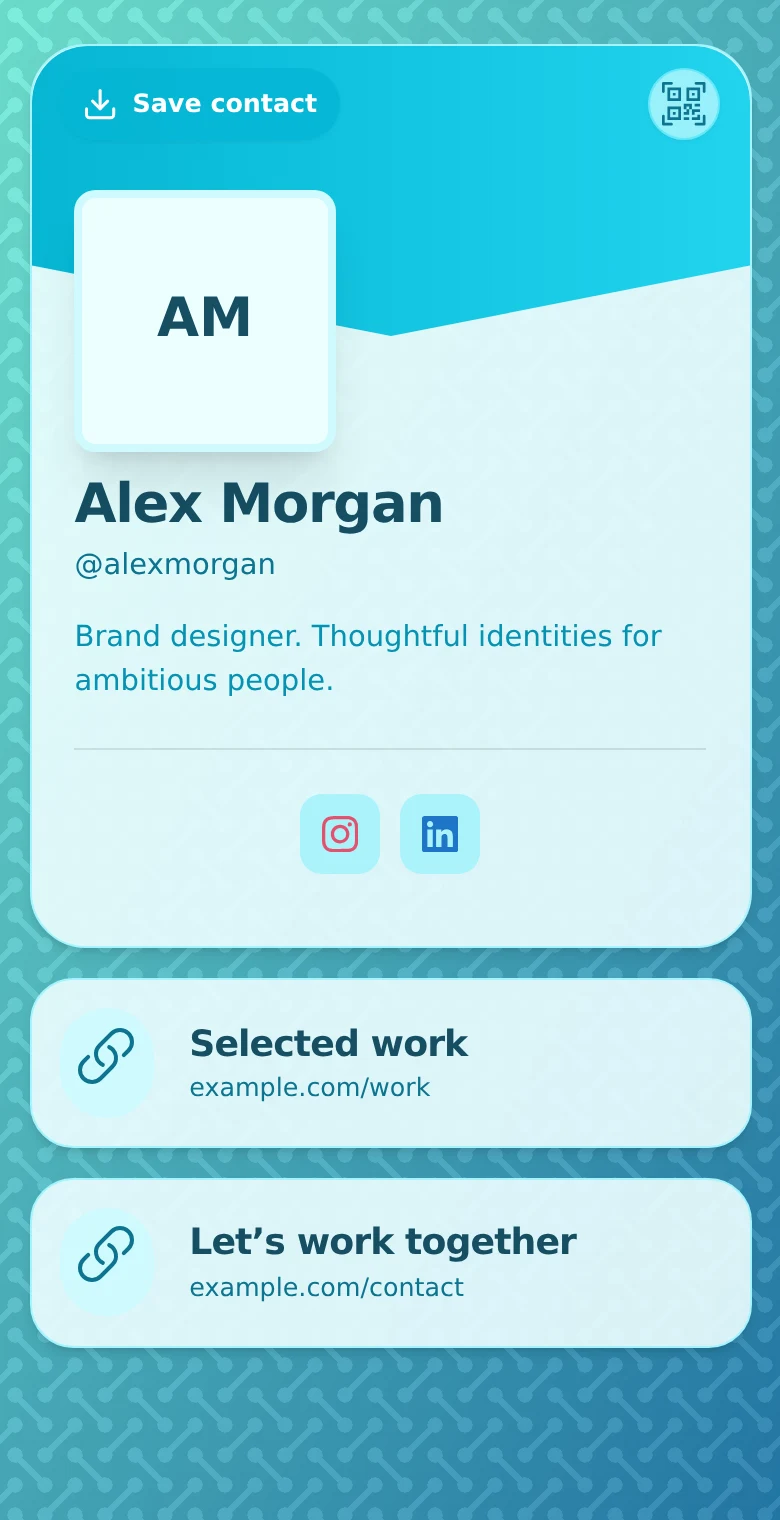
A useful business profile answers three things quickly: who you are, how you can help, and what someone should do next. Start there. You can refine the appearance and add more content after the essential path works.
This guide takes you from an empty QRown profile to a page you can share after a meeting, on a business card or from your social bio. For your first version, choose one audience and one main action.
1. Decide what this profile is for
Write a sentence such as “Help homeowners contact me about repairs” or “Show prospective clients my design work and let them enquire.” Use that sentence to decide what belongs on the page.
A profile for networking may prioritize Save contact. A local business may need its phone, hours and location. A freelancer may need a short service description, a portfolio link and an enquiry route. You do not need every available block.
2. Create the profile and check your identity
Sign in to QRown and create a profile. Add your name and choose an available handle for its public address. Use the name people recognize from your business, then check it carefully before sharing.
Add a suitable profile photo and relevant work details. Describe the service plainly in a text section; avoid making visitors guess from a job title alone. Some fields and appearance options depend on your plan, so use the controls available in your editor.
3. Add the contact route and essential content
- For direct enquiries: Add the email or phone you monitor for business.
- For evidence: Add a link to a relevant portfolio, service page or project.
- For appointments: Link to your existing scheduling service with a clear action label.
- For a local visit: Add location and availability blocks if your plan includes them.
- For a brief you can follow up on: On Starter and above, add a lead form and choose the fields you need.
Use the editor to arrange content around the main action. “See recent installations” tells visitors more than “Website.” A long collection of unrelated links can make a simple contact decision harder.
QRown's Save contact action generates a contact file from your profile details. Use the editor's Save contact option to test it on your phone. There is no need to make a separate VCF by hand; see the vCard guide for the import workflow.
Use Paragraph for FAQs, notices, and instructions
The Paragraph text block can do more than introduce you. Use it for a few common questions, a dated announcement, collection instructions, or notes about what to bring. Choose the content that helps your visitor take the next step.
Choose More sections, then Paragraph. Give it a clear title and write the details in Content. For example, a studio's “Before your visit” section could say:
Do I need an appointment?
Yes. Please arrange a time before visiting.
Free includes one text section. Your introduction, a brief notice, and a few answers can share its content field; you do not need one block per question. Follow the Paragraph guide with FAQ, notice, and instruction examples for copyable text, screenshots, and when to use Read more.
4. Choose a readable appearance
Open the profile's appearance controls and choose a layout and colors that fit your business. Check the preview as you work. Give text enough contrast, use an image that remains clear on a small screen, and keep the main action easy to spot.
You can revisit the design after you have shared the page and learned what people need. The themes and personalization overview shows the available design approach.
5. Test the page as a visitor
- Set the profile's visibility for the way you intend to share it. Use a public profile for a straightforward link anyone can open.
- Open the public page while signed out. Confirm the information is visible without relying on your owner access.
- Try the main link, call or email action and inspect the contact download.
- If you added a lead form, submit a clearly labeled test enquiry and check that you can find it in the Leads Inbox.
- Scan the profile's QR from another phone and confirm it reaches this page.
Check your plan's limits before relying on additional QR codes, advanced fields or multiple profiles. Compare plans for the combination you need.
6. Share it in one place first
Copy the profile link into a message or email signature, or download its QR for your business card. The main QR opens the profile, so you can update its content later while retaining that QR.
After sharing, review recorded activity in Statistics. Your own signed-in testing may be excluded. Look for whether visitors use the action you intended, then make a focused improvement rather than adding content just to fill space.
Next, practice sharing the profile during a real conversation.