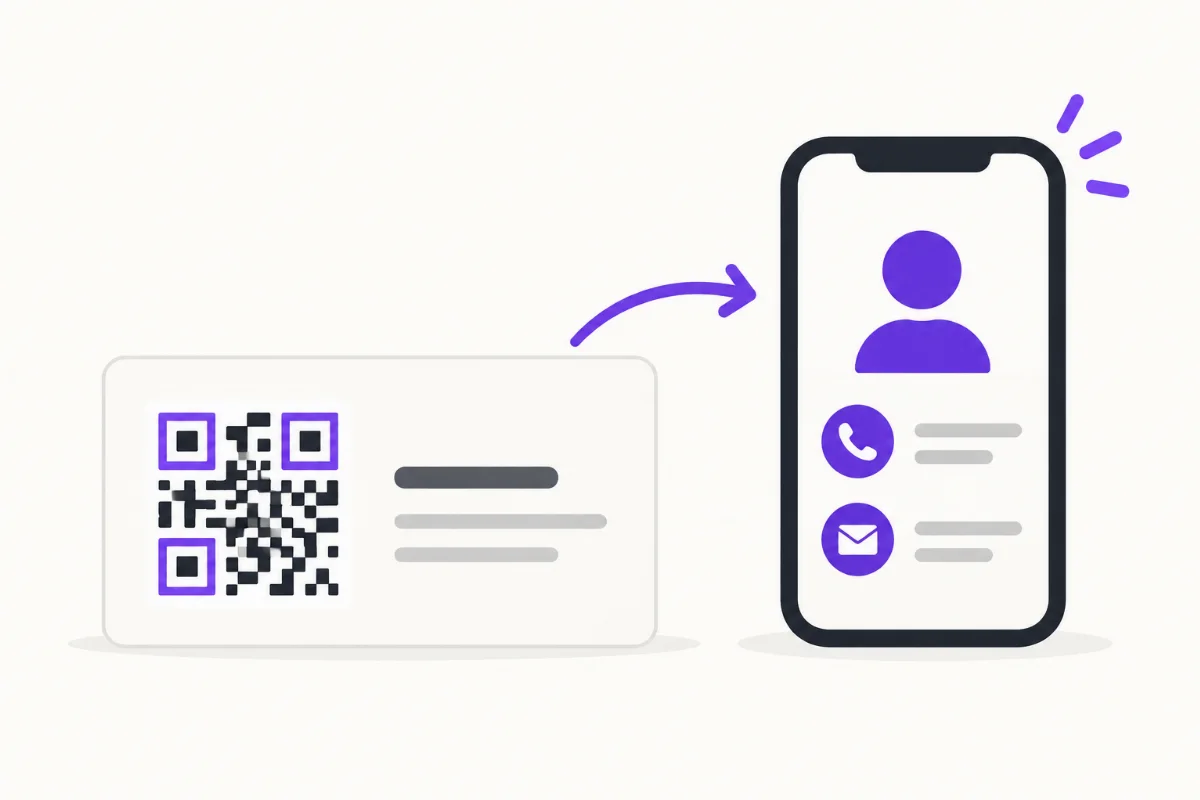
Choose a useful mobile destination, generate its QR code, place it in your card artwork with clear space around it, and test a printed proof at its final size. Keep your name and a readable contact method on the card so the QR is an option people can use.
Decide what the scan should open
Start with the conversation you expect to have. A contractor might offer recent projects and a way to ask about a job. A consultant might offer contact details and one relevant case study. A QR that opens an unrelated home page asks the recipient to start searching again.
A digital business card works well when several follow-up actions are useful. A specific service page may be better for a focused campaign. Open the destination on a phone before making the artwork: the name should be recognizable and the promised action easy to find.
Get the QR image for the exact destination
Copy the final address carefully and create or download its QR image. Use the original export rather than a screenshot from an editor. A vector export stays sharp when resized; a raster export needs enough pixels for the printer's requested resolution. Do not stretch the image into a rectangle.
Decide whether you need an editable redirect or a code containing the destination directly. Read static vs dynamic QR codes before committing a managed link to a large print run. Keep control of the destination and understand what happens if a service or subscription ends.
Build a layout with room to scan
Give the code a plain, light background and strong contrast. Leave its quiet zone intact: for a standard QR Code, the margin must be at least four modules, or small squares, on every side. That space is part of the QR artwork, not spare room for a logo or caption. See DENSO WAVE's margin guidance.
Reserve a dedicated area before fitting the rest of the copy. Put “Scan for work and contact details” beside it, outside the margin. Keep a printed email, phone number or short address for anyone who cannot scan. Use the size guide to plan a test size and the placement guide to compare front, back, portrait and landscape layouts.

Proof the entire handoff
- Export the artwork using your printer's template, safe area and bleed instructions.
- Print at actual size, with page scaling disabled. Measure the code on the paper.
- Scan on more than one phone in ordinary lighting while signed out of the destination service.
- Check the page, contact action and any download. A recognized QR is only the first step.
- Inspect a finished sample on the chosen stock and finish before approving a larger order.
A glossy coating, cropped margin or last-minute resize can change a working design. Retest the final file after any change. Our print-test checklist separates recognition failures from page-loading problems.
Track business-card scans without guessing who scanned
If you want to distinguish card activity from your sign or social links, decide that before generating the artwork. Use a separately named code for the card, such as “Networking card — October.” Copies of the same QR share one source. You cannot tell which individual paper card was scanned or identify its recipient from that count.
- One design, one source: Reuse its code when you want a combined total across a print run.
- Separate events: Use different code identities if you need event-level comparisons, and keep a note of which artwork was handed out where. QRown's additional-code allowances depend on plan.
- Useful follow-up: Review scans alongside contact-card downloads or enquiries where available. A download does not confirm that someone saved your contact, and a scan is not a new lead.
Keep distribution dates and quantities in your own notes. Ten recorded scans after handing out fifty cards is ten scan events, not proof that ten different recipients responded. Repeated scans, shared links and later visits can all affect the interpretation.
Use the first scan-tracking check before distribution. Then review the reports available in QRown Statistics for a date range covering the handout period and later follow-up.
Using a QRown profile
QRown's main profile QR opens that profile. Updating the profile changes what future visitors see without replacing the printed QR. It does not change the text already printed on your card or a contact someone previously saved. Additional and Print Studio QR codes can support editable destinations; available options depend on your plan.
Download your QR for your own artwork. Where Print Studio is available to your account, you can also use its supported products. The same proofing checks apply to either workflow. Explore QR and contact-card features when you are ready to connect the paper card to a profile.