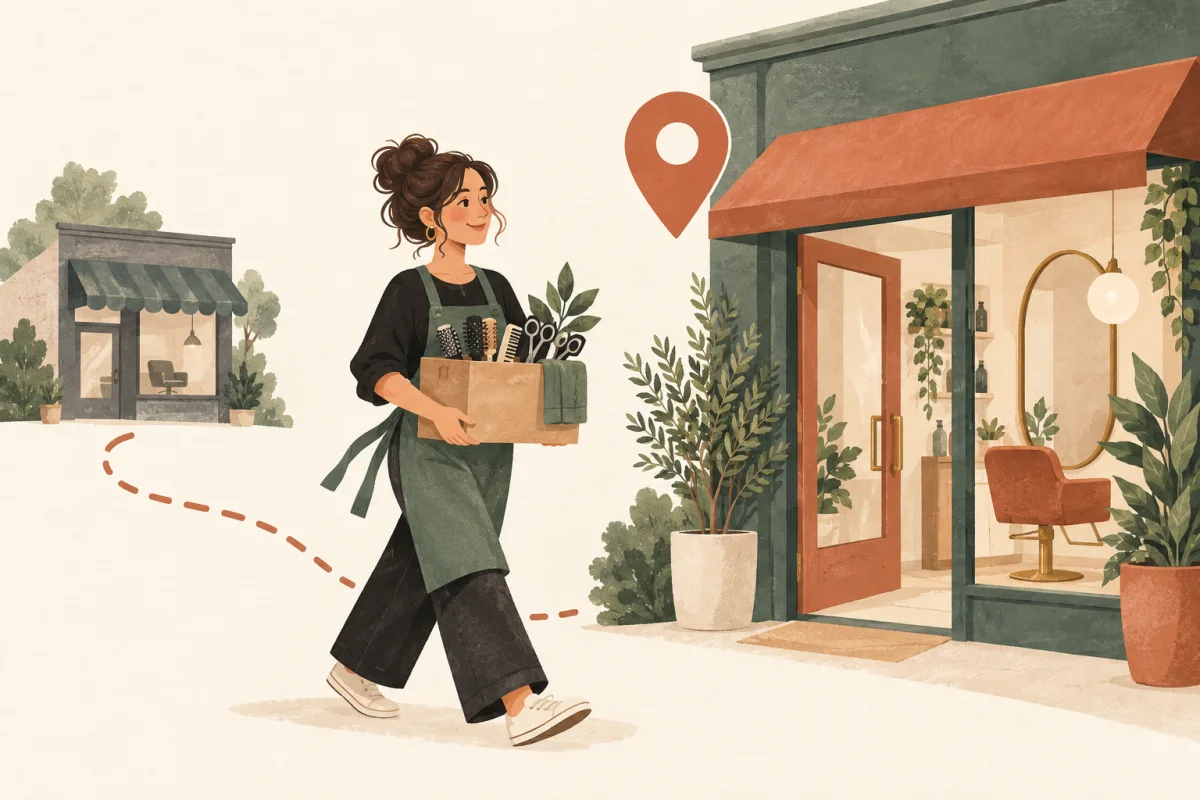
Tell clients where you are moving, when you start there, and how to book. Give them one current page with those details, then confirm any affected appointments separately. A public announcement helps people find you; it does not confirm that their existing booking has moved with you.
This guide is for an independent stylist changing salons or opening a studio. If your current website already has a page you can maintain, use it. A QRown business profile can also hold your move notice, address, contact details and booking link.
Decide what clients need to know before you post
Wait until you can give clear dates and a useful next step. If part of the move is still uncertain, say what is confirmed and when you expect to share the remaining details. Avoid announcing an opening date you cannot yet offer in your booking calendar.
- Your last day at the current salon: Use a full date so an old post still makes sense later.
- Your first day at the new location: Mention any gap when you will not be taking appointments.
- The new salon and address: Include the suite or floor, entrance and useful parking or arrival details.
- How to book: Provide the new customer-facing booking link, or explain how to request a time.
- What happens to existing appointments: Explain whether clients should wait for your confirmation or contact you. Do not assume the old calendar transfers.
- Where to ask a question: Give a contact route you will continue to monitor during the move.
Keep the message focused on the client's next visit. You can thank people for their support without explaining every reason you are leaving. Use contact details and channels you have permission to use.
A salon-move announcement you can adapt
Replace each bracketed detail before posting. This example announces the move without promising that existing appointments are already confirmed.
I'm moving to [new salon or studio]!
My last day at [current salon] is [full date]. I'll start welcoming clients at [new salon], [full address], on [full date].
You can find my location details and new booking link here: [your business page link].
Already have an appointment booked with me after the move? Please [contact me through this page / wait for my individual confirmation] so we can confirm the time and place before you travel.
Thank you for your support. I look forward to seeing you in the new space!
For a short social bio, use: “At [new salon] from [full date]. Location, booking and move updates below.” Link to the page with the full details. Keep a dated announcement visible on your professional account so someone who misses the first post can find it later.
Confirm existing appointments one by one
Review the appointments you are responsible for, especially those near the move date. Check the service, date, time and location in the booking system before telling a client their visit is confirmed. If deposits or bookings need attention, resolve their status through the relevant salon or scheduler rather than assuming they carry over.
Once you have checked the booking, a direct message can be as simple as:
Hi [client name], I've confirmed your [service] with me on [date] at [time] at [new salon and full address]. Please use [entrance or arrival instructions]. You can find the location details here: [page link]. Please reply to let me know you've seen the new address, or contact me if the move affects your plans.
If the appointment is not confirmed, say that plainly and offer the next step. For example: “I still need to arrange a time at my new location. Please contact me before making plans to travel.” Keep private appointment details in direct messages, not in the public move notice.
Keep one page current before and after the move
A single page gives your announcements a place to point. Keep your professional name recognizable, and put the move notice near the top so returning clients can find it quickly.
Before the move
Show where appointments happen now, followed by a clearly dated notice for the new location. If you only have one address field, keep it set to the current location and put the future address in the notice until the changeover. If appointments span both sites, label the dates for each and confirm the location in each booking.
When you start at the new salon
Update the address and booking link, then open both as a visitor. Change “I'm moving” to “I'm now at” and keep the move date in the notice. Check your social bio, email signature and any other pages you control for the old address or booking link.
After the move
Keep the notice while clients still need it, then shorten it once the new location is clear. Remove outdated directions and resolve any conflicting information you can edit. A new visitor should be able to find the current address without working through your move history.
Build the move page with QRown
- Add a Paragraph: Use a title such as “New location from [date]” and include the key dates, arrival notes and appointment instructions. Keep the essential information visible without Read more. The Paragraph guide shows how to arrange a short notice.
- Check your Location: Enter the address clients should use now. On the move date, update it and check the map destination, suite and entrance details.
- Add the booking Link: Label it with the action, such as “Book with me at [new salon].” Use the public booking URL, not your signed-in calendar. The booking-link guide covers the handoff and testing.
- Keep a contact option: Add the email or phone number you want clients to use for questions. Check that it still reaches you after the move.
Free includes one Paragraph, one Location and one Link block. You can combine your introduction and move notice in the same Paragraph. See the plan allowances if you need more blocks.
Saving these details updates your page. QRown does not transfer appointments or automatically send the move announcement to clients. Booking confirmations and reminders remain with your scheduling service.
Check the link, QR code and saved contact details
Open your page while signed out, then check it on a phone. Can a client tell where to go for their next appointment, open the correct booking page and contact you with a question? Test any QR code on cards or signs too.
Your existing main QRown profile QR can still open the same profile after you update its content. Keep the profile and code active, and choose visibility that lets your intended visitors open it. An address printed beside the QR does not change; replace or correct outdated print.
Contacts already saved on a client's phone do not update automatically either. If your contact details change, invite clients to save them again. The contact-card guide explains that separate step.
Why the announcement and the page both matter
In one stylist discussion, the question was how to announce a move while following up on prebooked appointments. In a separate customer discussion, someone could no longer book their preferred stylist through the old salon's website and had to search for them elsewhere. These are individual experiences, but they show the two tasks: tell clients what is changing, and give them current information they can return to.