Use QRown's Paragraph text block to answer a few common questions, share a dated notice, announce something new, or explain what visitors should do next. A useful text section can save someone from having to call just to check a small detail.
You do not need a separate block for every question. One Paragraph section has a title and a content field that can hold several question-and-answer pairs. The examples below are fictional; copy the wording you find useful and replace the details with your own. The screenshots show real QRown Paragraph components with sample content.
Choose the job for your text section
- Answer common questions: Explain whether appointments are needed, what to bring, or where to arrive.
- Post a notice: Give the dates and practical details of an entrance change or a temporary service interruption.
- Make an announcement: Introduce a new service or share your next confirmed market appearance.
- Give instructions: Explain collection steps, session preparation, or care advice for your work.
- Introduce yourself: Describe what you do, who you help, and how you work.
Start with the questions your visitors actually ask. A title such as “Before your visit” or “Collection details” tells them more than “Information.” Keep related details together and put the most useful answer first.
Add a Paragraph section
- Open your profile editor. Choose More sections, then Paragraph.
- Add a Title that describes the content. A title is optional, but it helps people find the right section.
- Write or paste your message into Content. Use short paragraphs and blank lines to separate ideas. For steps, type numbers such as “1.” and “2.” yourself.
- Leave Show as "Read More" expandable unchecked for content that should appear in full. If you enable it, fill in Preview Text with a short introduction.
- Select Create for a new section or Save when editing one. Check your profile preview and then open the shared page on your phone.
The content field is plain text with line breaks. Markdown markers and HTML do not turn into bold text, headings, or clickable links. Use a link block for a booking page, document, or other destination people should open.
Example 1: a basic FAQ in one section
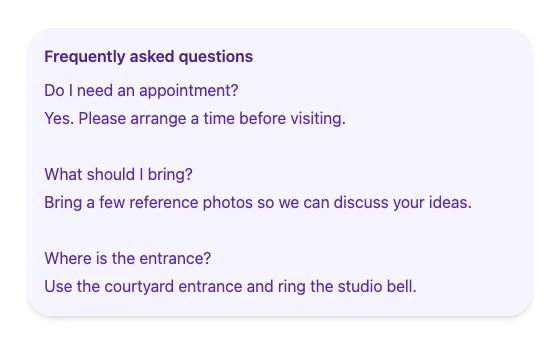
For a few short answers, leave everything visible. Use Frequently asked questions as the title, then copy this sample into Content and adapt it:
Do I need an appointment?
Yes. Please arrange a time before visiting.What should I bring?
Bring a few reference photos so we can discuss your ideas.Where is the entrance?
Use the courtyard entrance and ring the studio bell.
The screenshot at the top of this guide shows these three answers in one Paragraph block. Each question is simply a line of text. There are no separate expanding answers or question fields to manage.
If people need to book after reading, put a clearly labeled booking link nearby. The booking-service guide explains how to connect a profile to your existing scheduler.
Example 2: a temporary notice
A useful notice explains what changes, when it applies, and what someone should do. Use Temporary entrance change as the title for this fictional example:
November 2–6, 2026
Please use the courtyard entrance while work takes place at the front door. Follow the signs from the main gate.
Our usual appointment hours are unchanged.
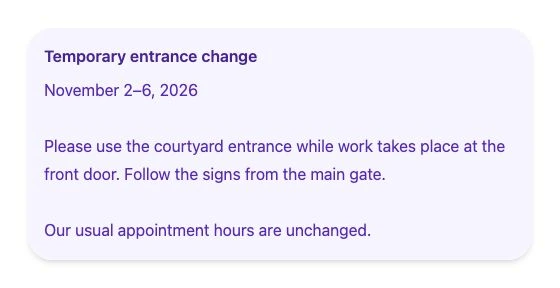
Use exact dates instead of “tomorrow” or “next week.” Update or remove the notice yourself when it ends; Paragraph does not schedule announcements, expire them, or send notifications to visitors.
A notice about changed hours does not update your saved availability or the automatic open/closed status. Keep those settings consistent with your message. The storefront QR guide explains holiday hours and notices in more detail.
Example 3: a new-service announcement
Tell people what is new and how to take the next step. For a studio adding a service, the title might be New: weekday planning sessions, with this content:
We now offer short planning sessions on Tuesday and Thursday mornings.
Bring your ideas and we will help you decide what to prepare for a full studio appointment.
Use the booking link on this profile to see the available times.
Use this only if it matches a service you actually offer. Add the booking link separately and check its destination. For a maker, the announcement might instead name a confirmed market, its full date, public venue, and stall number. See the craft vendor page guide for that setup.
Example 4: preparation or collection instructions
A short numbered list can explain what happens next. With the title Before your session, this content gives a visitor something useful to prepare:
1. Choose two or three reference photos that show what you like.
2. Write down the main questions you want to discuss.
3. Arrive at your booked time and ring the courtyard bell.
Need to change your appointment? Contact us using the details on this profile.
For collection instructions, replace these steps with what to have ready, where to go, and who to contact on arrival. For care instructions, write guidance that applies to the item you sold. A short introduction or policy summary works the same way: use a descriptive title and a few plain paragraphs.
Example 5: requirements for a mobile service
If you work at a customer's home or workplace, explain what the location needs before they book. For example, FTG Mobile Detailing's preparation checklist names water, an outlet, and room around the car. Those are that operator's requirements; yours may differ if you bring your own water or power.
Use a title such as Before booking a mobile detail. Adapt this fictional example to your equipment and the work you offer:
Water and power: We need permission to use an outdoor tap and a suitable power outlet within reach of the car. Tell us where they are so we can check whether the setup will work.
Working space: Please provide a place where we can open every door and move around the car. For a shared car park, check with the property manager that the work is allowed.
Not sure your location works? Use the email button on this profile before booking. Describe the parking space and available water and power. We will confirm whether we can work there before arranging an appointment.
If you bring your own supplies, say so instead. Give customers your actual requirements and a clear contact step if they cannot meet them. Keep these details visible near your booking link, and use the same wording in your booking instructions.
Add the email button separately with an Email block. If you prefer an enquiry page, add a Link block and change the example to match. Paragraph displays your instructions; it does not check the location or confirm an appointment.
When to use Read more
Leave essential notices and short FAQs visible. Use Read more when a longer explanation is useful to some visitors but does not need to occupy the page at first glance. This follows the GOV.UK Design System's guidance on hidden content: information everyone needs should remain easy to see.
For the studio preparation example, turn on Show as "Read More" expandable and enter this in Preview Text: “Bring your ideas. Here is how to prepare for your studio session.” Keep the numbered instructions in Content.
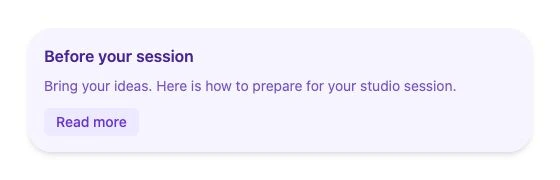
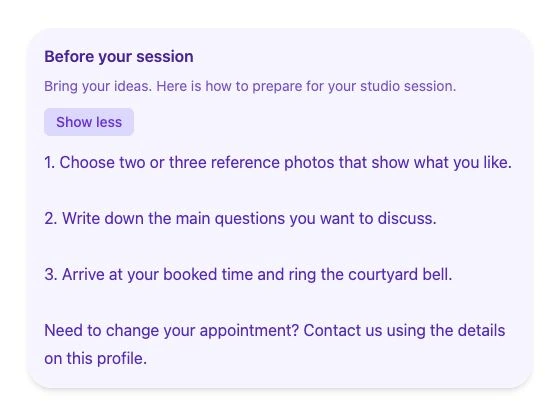
Read more expands the whole content field. If you put three questions there, all three answers appear together. It does not turn the section into a list of independently expanding FAQ items.
Make one text section useful on Free
Free includes one Paragraph text section. You can combine a short introduction, a current notice, and a few answers in that same field. For example, title it “About the studio and your visit,” introduce your work in two sentences, and follow with the questions visitors ask most.
You do not need one block per question. If you need separate sections in different places on the profile, compare the current plan limits. Keep your first version focused rather than filling the page with every possible use.
Check it as a visitor
- Open the shared profile on a phone and check that line breaks make the text easy to scan.
- Make sure dates, entrance instructions, and essential details are visible when needed.
- If you use Read more, tap it and then Show less. Check both states.
- Test any separate contact or booking links mentioned in the text.
- Remove outdated announcements and review answers when your services or arrangements change.