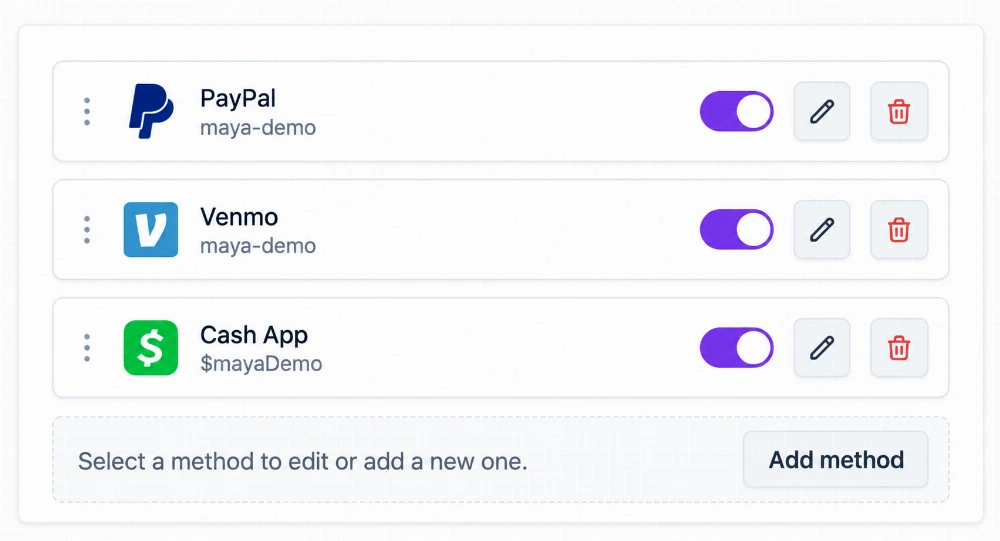
Use Payments to show visitors which payment services you accept and help them open the right destination. Choose a clear purpose for the section, such as “Pay for your session” or “Leave a tip.” Payment is completed through the selected service.
Choose how to present the amount
- Visitor enters the amount: Useful when you agree the total separately. Visitors type it in their payment app.
- Suggested amounts: Useful for optional tips or support. For example, offer $5, $10, and $20, with a custom amount if you want visitors to choose another value.
- Fixed amount: Useful when everyone is being shown the same amount, such as $25 for a clearly described service. Confirm the amount at the destination as well.
These are fictional examples, not price recommendations. Available amount settings and the number of payment methods depend on your QRown plan.
Add your payment methods
- Add Payments in the profile editor. Enter a title and select Continue to create the section.
- Under Payment methods, choose a provider. Follow the provider-specific hint to enter the requested username, address, or other identifier.
- Add an optional display label or note when it helps visitors recognize the destination. Use your own real payment details; the screenshot's example identifiers are not accounts to copy.
- Save the method. Add other methods if needed, then arrange them in the order you want visitors to see them.
- Under Payment settings, choose the amount option and currency available to you. Add suggested amounts or a fixed amount as needed, then save the settings.
Payment-method changes save separately from the section settings. Adding, editing, reordering, or switching a method off does not wait for the Payment settings Save button.
Check what each provider supports
Some methods can open a direct payment link. Others copy the recipient details or open a service where the visitor must enter those details. Follow the action shown for that method.
QRown currently supports passing an amount through its Venmo and PayPal links. Other listed methods may require visitors to enter the amount themselves. If none of your methods can carry an amount, the editor explains why the amount setting will not apply. Check the destination instead of assuming every method behaves the same way.
Verify the destination before sharing
Open the public profile on a phone and try each enabled method. Check the recipient, the action, and the amount where supported. You can inspect the destination without completing a payment. If you choose to make a test payment, it is a real transaction through that provider.
A click on a payment method is not proof that a payment was completed. Confirm payment in the provider's own records. Keep labels and notes aligned with the service you are asking someone to pay for.
To explain what customers receive before they pay, add service details nearby. The service pricing guide has examples of fixed prices, starting prices, and custom quotes.
Explore payment links and tips on your profile for supported actions and plan availability. See how creators present their work and payment destinations together.