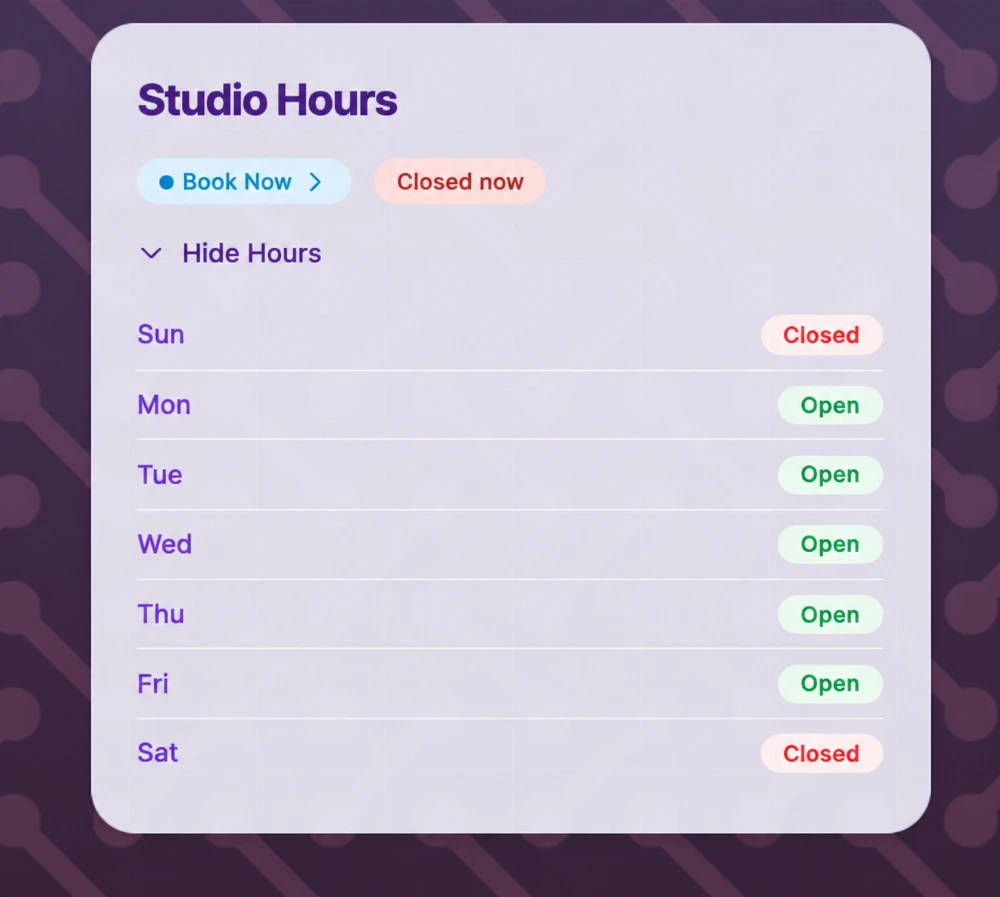
Use Availability to show your usual opening hours, explain appointment-only visits, and add dates when your schedule changes. Choose hours that tell visitors when they can actually visit or reach you.
Start with the schedule you keep
- A shop: Open Tuesday through Saturday, 10:00–18:00. Leave Sunday and Monday closed.
- A studio with a lunch break: Add 09:00–12:00 and 13:00–17:00 as two opening ranges on the same day. The gap is the break; do not enter the break itself as an open range.
- An appointment-only service: Enable By appointment only, add your booking link, and use the note to explain that visitors should arrange a time first.
These are examples, not suggested business hours. If you show hours for an appointment-only service, make the note clear about what those hours mean.
Set your weekly hours
- Open Availability from your profile editor's section picker.
- Give the schedule a clear title, such as “Studio hours,” and check its time zone. The time zone belongs to this schedule.
- Add an optional booking site link and note. The link opens your existing booking service; entering it does not create appointments in QRown.
- Under Open Hours, enable Show hours. Switch on each day you are open and enter its opening and closing times. Days left switched off are closed.
- Add another time range for a split day. You can enter up to three ranges per day. Avoid overlapping ranges.
- Save, then check the public profile's weekly schedule and open/closed status.
A day that is open with no time ranges is treated as open all day. Switch the day off to mark it closed. Turning off Show hours hides the weekly display while keeping the saved hours.
Add a closure or special hours
Under Holidays & closures, add the date and set it as closed or give it special opening hours. These dates override your normal weekly hours. The editor shows whether your plan allows holiday entries and how many you can add.
For example, a shop that normally opens on a Friday could close on December 25, 2026, or open only 10:00–13:00 on another selected date. Use the yearly repeat option only when the exception belongs on the same month and day every year. A holiday whose date moves needs the correct date for each year.
A note such as “Closed this Friday” does not change the automatic open/closed status. If your plan does not allow holiday dates, make the notice clear and keep the displayed schedule consistent with it. The Paragraph guide shows how to write a dated notice.
Check before customers travel
Open the public profile on your phone. Check the time zone, each open day, any split ranges, and the next holiday entry. Follow the booking link to confirm its destination. Review temporary changes when they end, and check moving holidays each year.
If the page is reached from a sign at your entrance, the storefront QR guide explains what else an after-hours visitor may need.