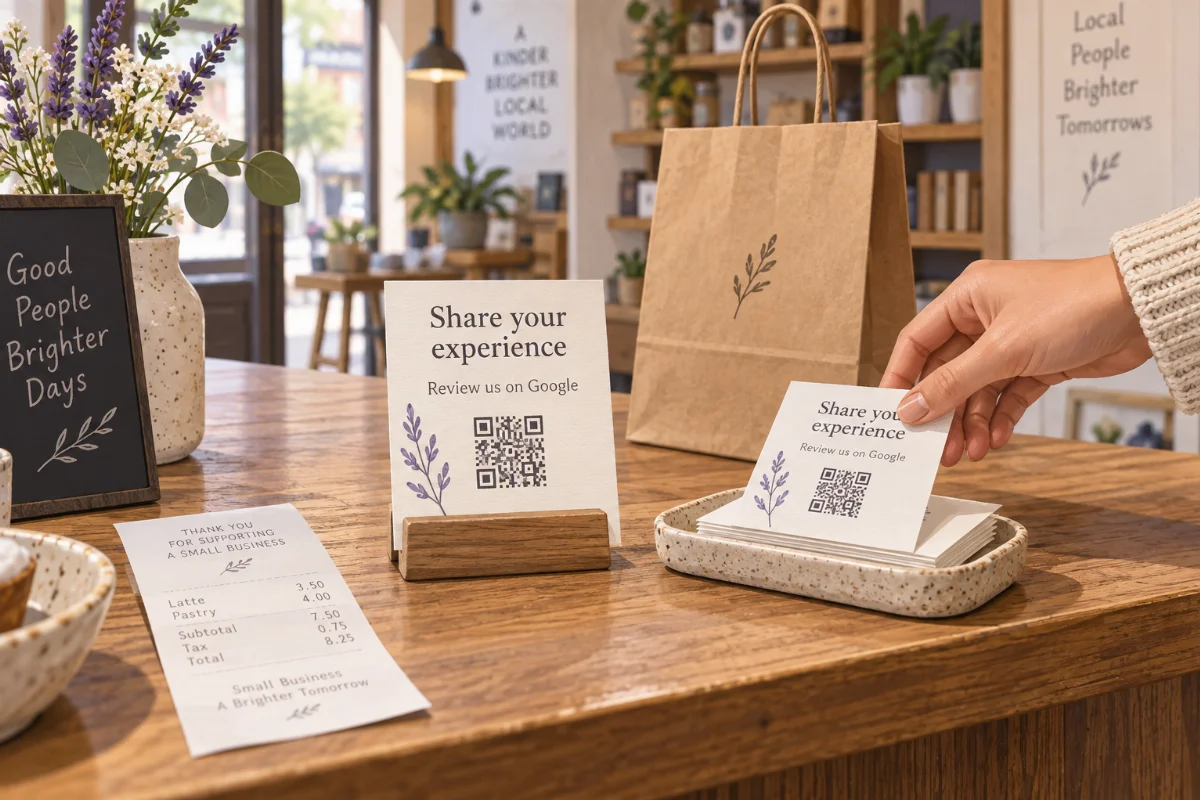
Ask every customer after a real purchase or completed service, make an honest review optional, and give them a direct link they can use later. A short request at a predictable point in your workflow is easier to repeat than chasing people until they respond.
You do not need a special review system to begin. Start with the review link from your Google Business Profile, one sentence you are comfortable saying, and a place in your existing handoff where that sentence belongs.
Choose a repeatable moment
For a flooring installer, the final invoice or job-completion message is a natural handoff. For a shop, it may be a receipt or thank-you email. Choose a point after the customer has had a genuine experience, and offer the same neutral invitation regardless of whether you expect praise or criticism.
Let customers decide whether and when to write. Google says businesses must not require or pressure people to leave a review while they are on the premises. Do not stand over a customer while they scan a code or ask them to show you a submitted review. See Google's Maps contribution policy for the current rules.
Get the direct Google review link
- Open your Business Profile in a computer browser and select Read reviews, then Get more reviews.
- Copy the review link. Google also offers a QR code there that you can save from a computer browser.
- Open the link on a different phone and confirm that it reaches the intended business. Test a printed QR proof before handing out a batch.
Google's link and QR instructions describe the current controls and suggest receipts, thank-you emails, chats and in-store displays. The customer needs to be signed in to a Google Account to post a review. A link or code makes the destination easier to find; it does not guarantee that someone will leave a review.
If you print a card or sign, label the destination in words, such as “Share your experience on Google.” Keep the business name readable as a fallback and test the finished piece. The QR proof checklist covers scan distance, page loading and the promised action.
Use one neutral sentence
Keep the request brief and specific to the completed experience. These are example words you can adapt, not messages sent by QRown:
- In person: “Thanks for choosing us. If you would like to share your experience later, this link takes you to our Google review page.”
- After a service visit: “Thank you for having us work on your home today. If you have time, you are welcome to leave an honest Google review here: [review link].”
- On a receipt: “Want to share your experience? Scan to leave an honest Google review when it suits you.”
Use a communication channel you already have permission to use. If someone declines or does not respond, leave it there. A second message that adds pressure can damage the customer relationship even when the first request was polite.
Keep the invitation fair
Google encourages genuine, balanced reviews. Its policy prohibits incentives in exchange for reviews, selectively soliciting positive reviews, discouraging negative ones, and telling reviewers what rating or specific content to include. Do not offer a discount, gift or prize for a review. Do not send the Google link only to customers who say they are happy while routing everyone else to a private feedback form.
If a customer raises a problem, respond to the problem through your normal service process. You can invite honest public feedback without making resolution depend on a rating or a review change.
Use QRown only where it fits your handoff
Google's own link or QR code is enough for a direct review request. If you already share a QRown profile, you can add the Google review URL as an external link on that profile. The free plan allows one link block; paid plans include more links. Keep the link label clear so visitors know they are leaving QRown for Google.
For a QR code that opens the Google review page directly, an additional QRown code can use a custom HTTPS destination. The main QRown code always opens the profile, and additional-code availability depends on the plan. Test the Google destination before printing. QRown does not send review requests, host Google reviews or confirm that a scan resulted in a posted review. The QR destination guide explains what can be changed after a code is printed.
Check the routine without chasing a number
After a few weeks, ask whether the request happens at the chosen handoff, whether the link still opens the right profile, and whether customers understand that a review is optional. If the team forgets the ask, put the link in the existing receipt or completion template. If customers have trouble opening it, fix the link or printed code before changing the wording.
Look at actual reviews in Google Business Profile, not QR scans, to see what was posted. Google notes that reviews can be missing or delayed, so do not treat every absent review as a failed request. Answer reviews professionally and use the feedback to improve the service, including when it is critical.