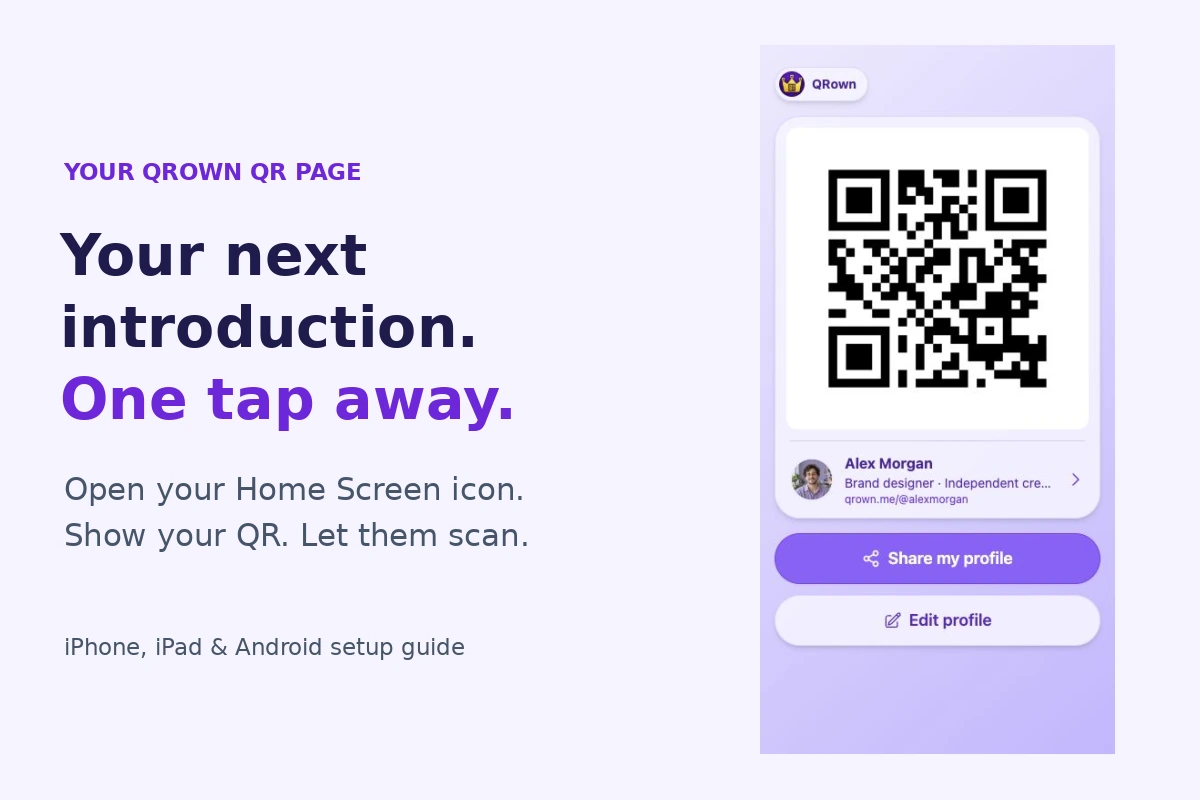
When someone asks how to find you, tap your Home Screen icon and show them your QR code. They scan it to open your QRown profile. You do not have to search through browser tabs, find the dashboard, or sign in again just to show your QR.
The shortcut opens your QR Page: a simple screen with your QR code, a way to view your profile, and options to share or edit it. Add it once, then keep it beside the apps you use every day.
Your next introduction, one tap away
A Home Screen shortcut gives your QR a familiar place on your phone. It is useful at a networking event, after a customer appointment, or whenever a conversation turns into “How can I contact you?”
- Find it quickly. Open the icon instead of looking for a saved link or the right browser tab.
- Show a clear QR. The QR Page puts the code up front so another person can scan your screen.
- Keep your current profile behind it. Update your services, links, or contact details in QRown. Visitors who scan your active main QR reach that profile with its latest saved content.
- Show it without staying signed in. Opening the QR Page and its profile view does not require a signed-in session. Editing still requires sign-in and permission.
This is a website added to your Home Screen; you do not need to download QRown from an app store. The person scanning your code does not need to install QRown either.
Plan to use an internet connection. Adding the icon does not make the QR Page or profile reliably available offline.
Open the right page first
- On your computer or phone, sign in to QRown and find the profile you want to use.
- Open that profile in the editor and scroll to Profile settings.
- Tap Keep your profile one tap away. For a QR Only profile, the row says Keep your profile QR one tap away.
- On a computer, scan the setup screen’s QR code with your phone. You can also use Copy setup link and open that link on your phone. It opens your QR Page with setup instructions; you do not need to sign in again on the phone. If you started on your phone, the settings link opens those instructions directly.
- Use Safari on iPhone or iPad, or Chrome on Android. Check that the QR Page shows the intended name and QR code, then follow the instructions for your phone below.
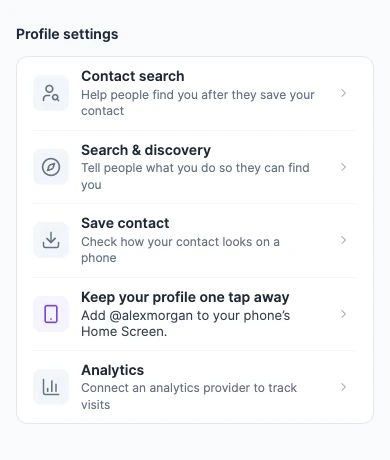
Add the QR Page itself. Adding the dashboard or your ordinary profile page can create a shortcut to a different screen. Close the on-page instructions if you need a clear view of the QR before continuing.
Add your QR Page on iPhone or iPad
- With your QR Page open in Safari, open Share (the square with an upward arrow). Depending on your Safari layout, first tap the page menu or More to find Share.
- Scroll through the share actions and tap Add to Home Screen. If it is missing, scroll to Edit Actions and add it to the list.
- Check the name so you can recognize the profile later. Where the option appears, leave Open as Web App turned on for the app-style experience.
- Tap Add, then return to your Home Screen and tap the new icon.
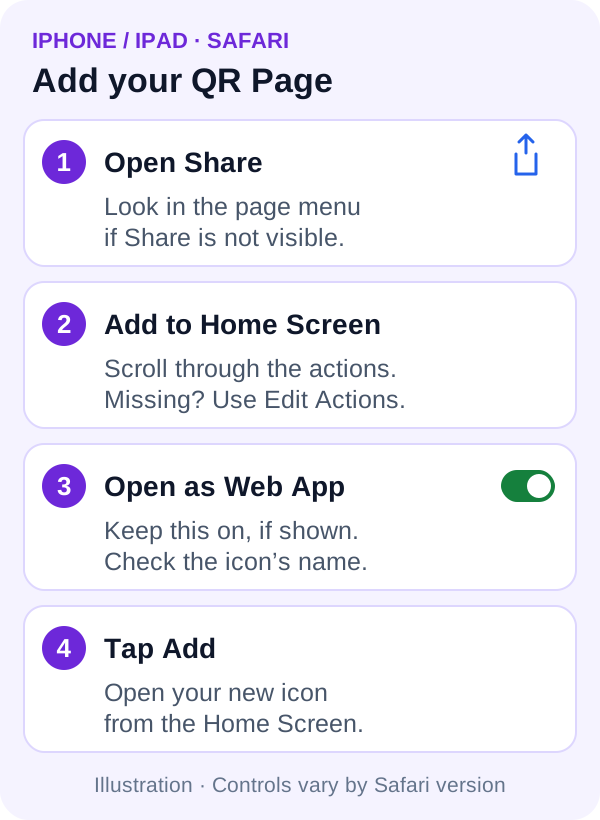
On iPad, Safari’s toolbar and Share button may be in a different position. Follow the same Share and Add to Home Screen actions. Apple also provides its current iPhone instructions.
Add your QR Page on Android
- Open the QR Page in Chrome. If QRown shows an Add to Home Screen install button, you can tap it and follow your phone’s confirmation prompts.
- Otherwise, tap Chrome’s More menu (three dots), then Install and create shortcut.
- Choose Install when available and confirm the prompts. If only Create shortcut is available, choose it, check the name, and tap Add.
- Return to your Home Screen and tap the new icon to check that it opens your QR Page.
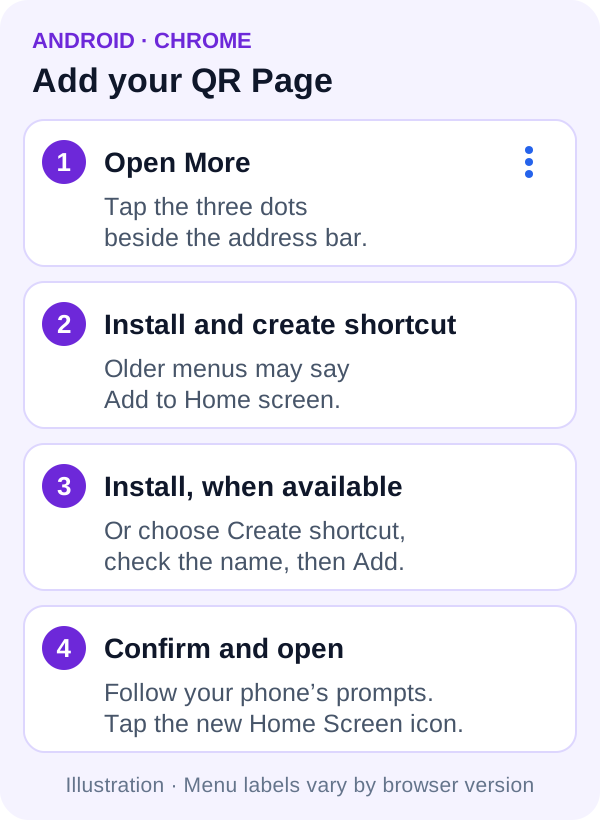
Some browser versions use Add to Home screen or Install app instead. A shortcut with a Chrome badge opens in Chrome; an installed web app can open in its own window. The QR remains useful in either case, but the navigation can look different.
See Google’s instructions for installing a web app and creating a website shortcut if your menu differs.
Use it when you meet someone
Tap your Home Screen icon, hold up the QR Page, and ask the other person to open their phone’s camera. They point it at your QR and tap the link that appears. Keep the full code visible and raise your screen brightness if their camera has trouble reading it.
Try this once before you need it: open the new icon and scan the QR with another phone. Check that the expected profile opens and its contact options work.
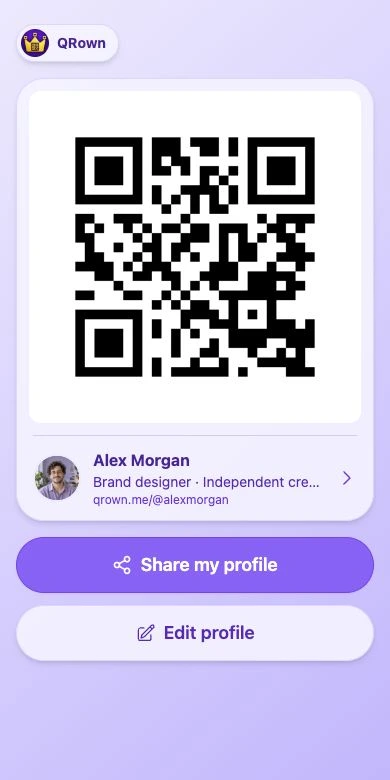
- Show the QR for in-person sharing. Your visitor opens the profile in their own browser.
- Tap the profile row below the QR to view your profile from the QR Page. When opened as an installed web app, use Back to QR code to return. Ordinary browser shortcuts may use browser navigation instead.
- Use Share my profile to copy the profile link for a message when the profile is Public or Unlisted. A QR Only profile shows visibility guidance instead of link sharing.
- Use Edit profile to make changes. Sign in if asked; you must have permission to edit that profile.
The Home Screen icon, QR scan, and saved contact do different jobs. Your icon helps you find the QR Page. A scan opens the profile for the visitor. To save your details in Contacts, the visitor chooses Save contact and finishes their phone’s save process. Scanning alone does not save a contact.
For more on that handoff, see sharing contact info without an app and how contact cards work.
Setup and access questions
I cannot find the option to add it
If you opened QRown inside a social or messaging app, open the QR Page in Safari or Chrome first. Use Safari’s Edit Actions if Add to Home Screen is missing. In Chrome, check both the install and shortcut options; the absence of QRown’s install button does not mean a browser shortcut is unavailable.
The icon opens my dashboard or ordinary profile
Return to the editor’s Home Screen shortcut row, confirm that the QR Page is open, and add that page. Test the new icon before removing the old shortcut. Removing a shortcut does not delete your QRown profile.
Do I have to stay signed in?
No. The QR Page and its profile view can open without a signed-in session for an accessible Public, Unlisted, or QR Only profile. The shortcut does not give anyone permission to edit your account. Editing requires sign-in.
Does it work with QR Only?
Yes. You can open the QR Page and view the profile from it without scanning first. Show the QR to give visitors access; the ordinary profile link alone does not grant QR Only access. QR Only is not password protection, and the QR Page is accessible to anyone who has its address. Use it only for information you intend to share.
Why is my profile unavailable?
Private profiles cannot use the QR Page. A profile locked because of plan access is also unavailable. Sign in to check its visibility and plan status. Adding a Home Screen icon does not override those restrictions or change your profile’s visibility.
Will it work without internet?
Do not rely on it offline. Your phone needs a connection to load the QR Page and its image reliably, and visitors need a connection to open your profile. If the QR image fails to load, check your connection and reopen the shortcut.
Can I add more than one profile?
Repeat the setup for each accessible profile you manage. Check each icon’s name and open it once so you know which QR it shows. Your plan still controls how many profiles you can have.
Learn more about QR codes and contact cards, or visit the general FAQ for account and plan questions.