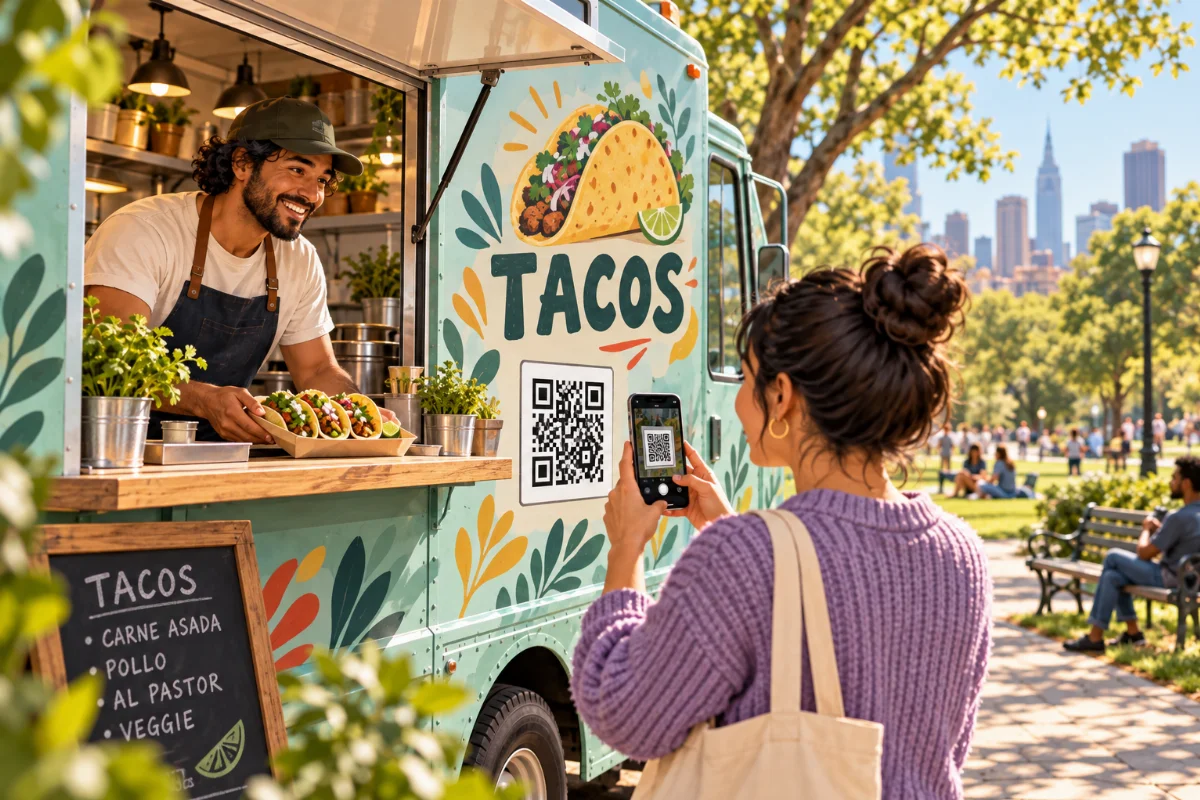
Give your food truck one page with this week's dates, stops and serving hours. Share that page's link wherever customers look for you, and update it whenever plans change. They should be able to find the next public stop without installing an app or searching through old posts.
The problem is familiar to operators. In one food truck discussion, an owner asks how to keep schedules consistent across social media and a website. Another mobile cupcake operator asks how to share location, menu and hours together. A useful schedule page gives those details a regular home. It still needs someone to keep it current.
Put the next public stop first
Start with the next place a customer can buy from you. Give the full date, venue, street address, town and serving hours. Add a short arrival note if the entrance or parking spot is hard to find. Use the local time at the stop; name the time zone if your route crosses one.
Write “Thursday, October 22” instead of only “today.” A customer may open the page later or forward a screenshot. Include the year in the weekly heading and a last-updated date and time. Change that note when you actually check the details.
Keep a menu link and contact method nearby. If an event needs a ticket or has limited public access, say so before people travel. A private booking can simply say “Private event — no public service”; leave the client's address and other private details off the public page.
A weekly schedule you can adapt
This is a fictional example. Replace every date, place and serving time with your confirmed details.
Week of October 19–25, 2026
Last checked: October 22 at 9:00 a.m. All times are local.Next public stop: Thursday, October 22
Riverside Market, 14 Market Lane, Exampletown.
Serving 11:30 a.m.–2:00 p.m. Find us beside the east entrance.Friday, October 23
Private event — no public service.Saturday, October 24
Oak Yard, 28 Mill Road, Exampletown.
Serving 5:00–8:00 p.m. Open to the public.Sunday, October 25
No public service. Next week's stops will be posted Monday.
Keep dates in order and remove last week's heading when you replace the schedule. If a stop is still uncertain, label it “Not confirmed” and keep it out of the next-stop position. Avoid leaving a past address at the top while you wait for new dates.
Choose one place to maintain the full schedule
Use a page you can edit from your phone. Keep its address stable so a saved link still opens the schedule after you update it. Put that link in your social bios, weekly posts and any printed invitation to check your stops.
Social posts can announce the week and remind people about a stop. Include the date and point readers to the full schedule for changes. Updating your page does not change an old post, a shared image or a customer's screenshot. Check those other places when plans change.
If a public calendar or another service already holds your schedule, link to that instead of keeping a second full copy. Open the link while signed out to make sure customers can read it. Keep internal bookings and client details in a separate private calendar.
Build a simple schedule page in QRown
QRown's existing content blocks can hold a manually maintained schedule. Use a Paragraph section titled “This week's stops.” Put the next public stop first, then list the rest of the week.
- In your profile editor, choose More sections, then Paragraph.
- Enter “This week's stops” in Title. Add your confirmed dates, venues, addresses and serving hours in Content, with the next public stop first.
- If you see Show as "Read More" expandable, leave it off so the schedule stays visible. Choose Create to save the section.
- Check the result with Preview on your phone or View profile on desktop. Check your profile's visibility before sharing so customers can open it.
- Choose Copy link to share the page. For its QR image, open QR, open the three-dot menu on the QR card, then choose Download PNG.
- Paragraph: Keep dates, serving hours, arrival notes and changes together.
- Location: If you use a location block, label it clearly and keep its address matched to the current stop. One address is not a weekly route.
- Web/Social: Point to your menu or an externally maintained schedule. Use a label such as “View our weekly stops” so customers know what opens.
Free currently includes one text section, one location block and one external link. Plan around those limits, or compare plans if you need more. A single text section can hold several dated stops. For dated notices and short customer answers alongside your schedule, see the Paragraph guide with FAQ and announcement examples.
Availability hours do not connect different dates to different venues. Keep the dated schedule clear, and avoid showing general hours that conflict with it. Saving profile changes updates what visitors open, but it does not rotate locations, track your truck, send alerts or synchronize social posts for you.
If you print your profile's QR code, add a clear invitation such as “Scan for this week's stops,” and a readable link. Follow the QR print-testing checklist before making a batch.
Make changes where customers will see them
Choose who updates the schedule and when. A small routine is easier to keep than relying on whoever remembers during a busy service.
- Before the week starts: Confirm the stops with each host. Replace the dates and check every address and serving window.
- Before each service: Check the page on your phone. Make sure the next-stop details match where you will actually serve.
- When plans change: Put a dated notice above the schedule, correct the affected stop and update the last-checked time. Then correct your social posts and tell the host.
- After the last stop: Add the next confirmed date or say when you will post the new schedule. Remove expired notices.
For example: “Update, Saturday, October 24 at 3:00 p.m.: Tonight's Oak Yard stop is cancelled. We have no public service tonight. Check here Monday for next week's stops.” A clear cancellation is more useful than silently removing the venue from the list.
If you sell out early, say that service has ended and give the next confirmed stop if you have one. Updating the page helps people who check it; it does not notify everyone who saw the original announcement.
Check the customer view
Open your page while signed out and ask someone else to find the next stop. Can they answer these questions without asking you?
- Which date is this schedule for, and when was it checked?
- Where is the next public stop, and what time will you serve?
- Is there a cancellation, access restriction or entrance note?
- Can they read the menu and open any directions or schedule links?
If you run several trucks or need automatic calendar updates and customer alerts, compare dedicated scheduling tools against those needs. A manually edited profile is useful only when someone can maintain it. Keep your usual service area separate from the dated stop customers should visit next.